
8 Digital Business Card Won't Open or Information Is Incorrect? A Guide to Checking Links, QR Codes and Contact Details
Check each step from the access entry to the page content, so clients can view your information and contact you smoothly
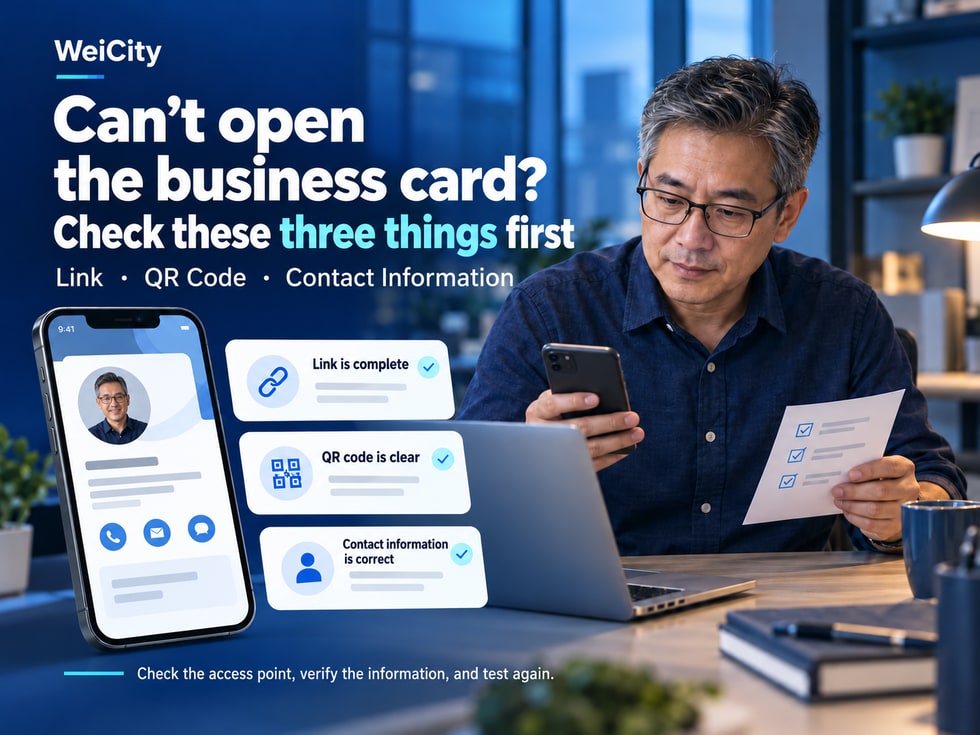
What can you do if a client cannot open your digital business card, lands on an incorrect page after scanning the QR code, or finds an incorrect phone number? This article summarizes common checks for WeiCity digital business cards, including link completeness, QR code clarity, access conditions and contact details, helping you identify the problem and test again after making changes.
You have shared your WeiCity digital business card with a client, but they tell you:
🔗 "The link you sent me won't open."
📲 "I've scanned the QR code several times, but nothing happens."
👤 "When I open it, it shows someone else's information."
📞 "You've changed your phone number, but my phone still has the old one."
💳 "Why doesn't my NFC card respond when I hold it near my phone?"
Although all of these problems occur while sharing a digital business card, the causes may be completely different.
Some are caused by copying errors in the link.
Some relate to the phone's network, the browser or the conditions for accessing the page.
Some are caused by unclear QR code images.
Others happen because personal information has not been updated, or because the client's phone contacts still store old details.
When resolving digital business card sharing problems, the most important step is not to resend the same link repeatedly, but first to identify which step is causing the problem.
Depending on the features available, WeiCity digital business cards can be shared through a personal link, a QR code and a configured NFC business card.
This article covers common issues such as digital business cards not opening, QR codes that cannot be scanned, failed NFC detection, incorrect personal information and phone contacts that have not been updated, and provides specific checking steps to help individual users, sales representatives and merchant managers troubleshoot more effectively.
Before you start troubleshooting, it is recommended that you first ask the client what they are actually experiencing.
This is because "the business card won't open" can refer to different problems.
The client clicks the link but the page does not load.
This may involve:
The link is incomplete.
The web address is incorrect.
Network problems.
Browser problems.
Page access conditions.
The phone camera cannot recognize the QR code.
This may involve:
The image is blurry.
QR codes that are too small.
The pattern has been cropped.
Light reflection.
The scanning method is incorrect.
The page opens, but it is not your digital business card.
This may involve:
The wrong link was copied.
Someone else's QR code was used.
Outdated information was shared.
The wrong address was written to the NFC card.
The page opens normally, but shows an old phone number, an old job title or incorrect information.
The personal information itself needs to be checked.
The online digital business card has been edited, but the client's phone still stores the old information.
The phone contact record needs to be checked.
This may involve:
Phone compatibility.
NFC settings.
Tap position.
Card configuration.
"Did the page fail to open after you clicked the link, or did it open but show incorrect information?"
If the client is willing, you may also ask them to provide a screenshot of the error that does not contain sensitive information.
📌 Identify the type of problem first, so you can choose the correct checking method.
A personal link is a common way to share a digital business card.
However, when sharing through WhatsApp, email or other platforms, the link may be copied incompletely or entered incorrectly.
Go to your personal WeiCity page.
Find the entry point for the currently provided share or copy link.
Get the complete address again.
Look out for:
Missing characters.
Extra spaces.
Manual typing errors.
Text that cuts off the link.
Do not test only on your own personal page.
Click the link in the chat message you have already sent.
This allows you to check what the client actually received.
Check:
Name.
Photo.
Work role.
Other public information.
If you find that the original link was wrong, you can tell the client:
"Sorry, the digital business card link I sent earlier was not copied completely. This is the correct WeiCity personal link, and you can open it again."
If the page provides a copy function, it is recommended to use it.
📌 If a digital business card link won't open, first confirm whether the client received the current, complete and correct web address.
If you have confirmed that the web address is correct, the next step is to check the network, the browser and the page access conditions.
Try opening another normal website.
If other web pages also cannot be accessed, the problem may be related to the network connection.
Depending on the situation, you can check:
Wi-Fi.
Mobile data.
Network signal.
Close the current error page, then click the link again.
Some chat apps open links in a built-in browser.
If the built-in browser cannot display the page properly, you can try copying the link into your phone's browser.
For example:
Safari.
Chrome.
Other commonly used browsers.
If the page asks you to log in, first confirm the actual access conditions.
Do not assume that all personal information can be viewed publicly without logging in.
If conditions allow, try opening the link on another phone.
For example:
Switch from Wi-Fi to mobile data.
Or use another working network.
You can compare:
Whether the WeiCity homepage opens.
Whether your own personal page opens.
Whether other public pages known to work normally open.
This helps determine whether the problem occurs only with a specific link.
Being logged in to your account and able to view the page does not mean that a client who is not logged in can access it in the same way.
📌 If the link is complete but still won't open, further distinguish between network problems, browser problems and page access problems.
This is a situation that deserves special attention when sharing a personal page.
You may already be logged in to WeiCity, so you can view your own information normally.
However, your client may be using another phone, another browser or a platform account they are not logged in to.
The access conditions for the two may be different.
Check whether you are currently logged in.
Confirm whether the client sees a login prompt.
Check which users can actually view the current page.
Confirm that you are sending a personal link suitable for external sharing, rather than an internal page address used only for account management.
If conditions allow, test using a private browsing or incognito window.
Step 1: Copy the share link provided on your personal page.
Step 2: Open a private browsing window.
Step 3: Paste the link.
Step 4: Check whether it opens normally.
Step 5: Confirm which information is actually displayed.
Explain this to the client according to the actual prompts on the page, and do not promise that everyone can view all content directly.
📌 Before sharing externally, it is best to test how the page actually appears to visitors who are not logged in.
A QR code reduces the need to type a web address manually.
However, for a QR code to be recognized properly, the image must be clear and complete, and it must be scanned in an appropriate way.
Avoid using:
Screenshots that are severely blurred.
Images that have been compressed repeatedly.
Low-resolution images that have been enlarged too much.
A QR code usually needs an appropriate margin of blank space around it.
Do not crop the edges carelessly.
If the QR code is too small, a phone may have difficulty recognizing it.
If the QR code is displayed on another phone, you may adjust the brightness as needed.
Avoid:
The screen is too dark.
There is strong glare.
The pattern cannot be seen clearly.
Do not hold the phone too close.
Do not hold it too far away either.
Make sure the entire QR code falls within the scanning area.
Do not allow:
Text.
Stickers.
Logo.
Decorative patterns.
Anything covering important parts of the QR code.
Depending on your phone and app support, use the camera or a related QR scanning feature.
Even if the QR code can be recognized, confirm that it opens the correct personal page.
When showing the QR code, you can say:
"This is my WeiCity digital business card QR code. You can scan it to view my personal introduction and contact details."
📌 If a QR code cannot be recognized, first check the pattern and scanning method before determining whether the problem relates to the page link.
Some users place their digital business card QR code on:
Paper business cards.
Flyers.
Exhibition posters.
Product packaging.
Event materials.
Store display signs.
However, a QR code that scans well on a screen may not remain easy to recognize once it is reduced in size for printing.
If the QR code is printed too small, it may affect phone recognition.
A low-resolution image that is enlarged for printing may have blurry edges.
If the QR code and background colors are too similar, recognition may be affected.
Do not crop the QR code excessively when laying out the design.
Avoid adding decorations that interfere with the pattern's readability.
Highly reflective surfaces may make scanning more difficult.
A design file that scans on a computer does not guarantee that the actual printed product will scan.
First, make a sample print.
Test it with different phones.
Scan it at a normal usage distance.
Confirm that the correct page opens.
Then decide whether to proceed with full-scale printing.
If the QR code does not work properly, you can first share your personal link or another effective method.
Whether reprinting is needed should be decided based on the actual problem.
📌 When preparing printed QR codes, be sure to test the actual finished product, not just check the design on your computer.
If a customer opens the card and sees another person's name or photo, stop using the current sharing entry point.
This is not just a display issue, as it may also cause customers to contact the wrong person.
Check which WeiCity account you are logged in to.
Check:
Name.
Photo.
Work role.
Use the sharing method provided on the current page.
If the page provides a QR code, confirm that it corresponds to the correct personal profile.
If the problem comes from an NFC business card, check the address that the card actually reads.
For example:
Commonly used introduction text on WhatsApp.
Email signatures.
Social media bios.
Electronic promotional materials.
Paper business cards.
For example:
Open the message as it is actually sent via WhatsApp.
Scan the QR code that has already been printed.
Tap the NFC card that has already been configured.
"Sorry, the business card link I shared earlier was incorrect. This is my current WeiCity digital business card, please use this link instead."
If the problem comes from an incorrect link or QR code, editing only your personal introduction may not solve it.
📌 When an incorrect person's page opens, the key is to check where the sharing entry point actually leads.
If the page displays normally but the content is incorrect, check where the personal information comes from.
Check:
Check for typos.
Check whether an outdated name or title is still being used.
Check whether the Chinese and English names are correct.
Confirm:
Current job title.
Company you belong to.
Scope of responsibilities.
Check whether businesses that have already stopped being offered are still being displayed.
Check:
Number.
Country code.
Whether it is still in use.
Confirm:
Spelling.
Email address.
Whether it can receive emails normally.
Confirm that the correct photo has been uploaded.
Edit and save using the editing method supported by the current page.
Then reopen the personal page.
A salesperson has changed companies.
However, the digital business card still shows the job title from the former company.
In this case, you should check:
Company name.
Work role.
Personal profile.
Contact information.
Other external links.
If a customer has already saved the old number, you can proactively send a correction message.
📌 When page content is incorrect, edit the personal information itself and confirm the actual display after saving.
This is an issue that is easy to confuse when using digital business cards.
Online digital business card information and contact records on a phone are not necessarily synced automatically.
For example:
You previously used phone number A.
The customer previously saved number A to their phone.
Later, you changed to phone number B.
You have updated your WeiCity digital business card.
However, the customer's phone may still have number A saved.
Shows the personal information that is currently public.
Saves contact information that was previously imported or entered manually.
Does not mean that contacts on the customer's phone will automatically change.
You can ask the customer to verify:
Name.
Phone number.
Email.
Other necessary information.
Update it using the method provided by the phone's system.
If contacts are imported again, the following may occur:
The same person has two contacts.
One contact has the old number.
The other contact has the new number.
"Hello, my work phone number has been updated.
This is my current WeiCity digital business card, which contains my new contact information.
If you saved my old number, you can update your phone contact using the latest information."
Whether syncing is available depends on the actual features and device support.
📌 After updating your digital business card, important contacts may still need to have their phone contacts updated separately.
If the current WeiCity digital business card offers a feature to save contacts or download contact information, you can follow the prompts on the page and your device.
If saving fails, check the following items.
First verify the name and photo.
Confirm that you are using the related features actually provided on the page.
Some devices may require you to download the file first before opening it to import.
Confirm how to save according to your phone's operating system.
If the same person already exists in your contacts, avoid creating a duplicate record.
Confirm whether the contact has actually been saved successfully.
Avoid saving incorrect information.
Tapping the save entry does not necessarily mean that all steps have been completed.
The import process may differ between iPhone, Android, and different contact apps.
📌 After saving the contact, go to your phone's contacts app to confirm the result, rather than only checking the digital business card page.
NFC cards can provide business card information or a link through the near-field reading function of compatible devices.
If the NFC card has been correctly written with the WeiCity digital business card address, the other party can read it with their phone and open it by following the prompts.
However, if there is no response, there may be several possible causes.
First confirm that the device has the applicable NFC reading capability.
Some devices require you to check the related settings.
The NFC sensing area may differ between phones.
You can slowly adjust the position of the card.
If necessary, remove accessories that may interfere with reading.
Confirm that the card has been written with readable information or a link.
If the card is read successfully but the web page cannot be opened, check the web address further.
If the NFC card reads an online link but the page cannot be accessed, check your network and access conditions.
This helps determine whether the problem is more likely with the device or the card.
If NFC cannot be used temporarily, you can instead use:
A personal link.
Business card QR code.
other valid contact methods.
Tapping, opening the page, and saving to contacts are separate operations.
📌 If NFC cannot be used, you can first share your information through a link or QR code, and then continue checking the card issue.
If your personal username or page address has changed, check all sharing entry points you have already used.
Do not assume that the old address is still valid.
Copy the currently valid address again.
If the QR code points to an old URL, you need to test it by actually scanning it.
If the card contains an old link, check whether it still opens the correct page.
Confirm that no outdated links are being used.
Check the URL in your profile information.
Check any introduction files that have already been produced.
Confirm that the QR code still works properly.
The original personal link used the old username.
Later, you changed the username.
If the old address is no longer valid, QR codes already printed may not open the new page.
Whether you need to regenerate the QR code or rewrite the NFC card depends on the actual link change and how the platform handles it.
A QR code that looks normal does not necessarily mean the URL inside it is valid.
📌 After a username or link changes, retest all external sharing entry points.
If different phones give different results, first confirm at which step the problem occurs.
If the web page does not display after tapping the link, check your browser and network.
If the pattern cannot be recognized, check your camera or scanning function.
Check device compatibility, settings, and the tapping position.
The contact import process may differ between phone operating systems.
Try opening it directly in your phone's browser.
The same link.
The same QR code.
The same NFC card.
Test separately on different devices.
Phone model.
Operating system version.
Browser.
How it was opened.
Error message.
Specific problems should be judged based on the actual device and the results of the operation.
📌 If different devices produce different results, compare how the same entry point performs in different environments.
When troubleshooting, you can follow the order from simple to complex.
Confirm that the URL is complete.
Confirm that the page belongs to you.
Confirm that other websites can be accessed normally.
Rule out a problem with a specific browser.
Check whether only one phone is experiencing the problem.
For example:
The link can be opened.
The QR code cannot be recognized.
In this case, check the QR code first.
If the link and QR code both work and only NFC fails, focus on checking the card and device.
If the same problem persists across multiple devices and networks, you can organize the information and report it to the platform.
Link works, QR code fails:
First check the QR code image and scanning method.
Link works, NFC fails:
First check the NFC device and card configuration.
Link opens the wrong person:
First check the sharing entry point.
Page is correct, but contacts still show the old phone number:
First check the contact record on your phone.
Multiple devices cannot access the same page:
Further check the page access conditions and consider reporting the issue to the platform.
A single symptom cannot be used to directly determine the cause of a technical fault.
📌 Ruling out each part step by step can help technical staff understand more quickly where the problem occurs.
If you have checked on your own but the problem persists, you can prepare a clear technical report.
Simply saying "the business card won't open" is usually not enough for technical staff to determine the cause.
Please provide the following information.
For example:
The personal link will not open.
The QR code cannot be scanned.
NFC cannot be read.
The wrong page opens.
Failed to save the contact.
For example:
iPhone.
Android phone.
Specific model.
Provide the operating system version actually in use.
For example:
Safari.
Chrome.
WhatsApp built-in browser.
Provide the actual URL where the problem occurred.
Instructions:
Where you opened it from.
What you tapped.
What result appeared.
Try to include the actual error message.
Record the approximate date and time.
For example:
Wi-Fi cannot open it.
Mobile data also cannot open it.
Another phone can access it normally.
Avoid including the following in screenshots:
Passwords.
Verification codes.
Identity card number.
Other unnecessary private information.
Issue: The WeiCity personal digital business card link cannot be opened
Device: iPhone
Browser: Safari
How it was opened: Tapped the personal link from WhatsApp
Issue description:
After a customer tapped the WeiCity digital business card link I shared, they could not open the personal page normally.
Already tried:
Copied the current link again.
Check the network.
Opened it directly in the browser.
Please help check the access status of this link.
Attachments: The actual link and an error screenshot.
Issue: The WeiCity digital business card QR code cannot be recognized
Device: Android phone
How it was opened: Scanned the QR code with the phone camera
Issue description:
When scanning the digital business card QR code with a phone, no recognition result appears.
Already tried:
Adjusted the scanning distance.
Increased screen brightness.
Tried another phone.
Please help confirm whether the QR code is working properly and whether the corresponding link is correct.
Attachments: QR code image and test notes.
Issue: NFC card cannot open the WeiCity digital business card
Device: Enter the actual phone model
Issue description:
When the phone is held near the NFC card, no reading prompt appears.
Confirmed:
The personal link opens normally.
The QR code scans normally.
The NFC card still does not respond.
Please help confirm possible device compatibility or card configuration issues.
Attachments: Card-related materials and test results.
Issue: The WeiCity digital business card link leads to the wrong personal page
Issue description:
After I shared my own personal link, the customer saw another person's profile.
I have tried copying the link again, but I need to further confirm whether the sharing entry point is correct.
Please help check the corresponding address and the actual page.
Attachments: The problematic link, profile information for the correct page, and necessary screenshots.
Explain what happened, how to reproduce it, and which steps you have already checked.
This makes technical troubleshooting much easier than simply writing "the system has a problem."
When a problem occurs, there is no need to immediately use complicated technical explanations.
You can first help the customer get the contact information they need.
"Sorry, the link I sent earlier may have had a problem. I've copied my current WeiCity digital business card address again, so you can try this one."
"No problem, I'll send you my personal business card link directly so you can tap to view it."
"Thank you for letting me know. The entry point I shared earlier may have been wrong. I'll confirm the correct page first and then send it to you."
"Sorry, my work number has been updated. This is the current correct number, and you can update the contact you saved earlier."
"No problem, let's share my card by QR code or link so we don't waste your time."
"This page still can't be opened properly right now. I'll check it. In the meantime, you can contact me through this work contact method."
Because what the customer really needs may not be a particular technical feature.
Rather, they need to:
Get to know you.
View your information.
Find a way to contact you.
Continue the conversation.
📌 When technical problems occur, helping the customer complete contact first and then dealing with the sharing feature usually better meets actual needs.
Are you logged in to the correct account?
Is it accurate?
Is it clear?
Is it correct?
Is it accurate and up to date?
Is it valid?
Is it correct?
Is it complete?
Does it behave as expected when not logged in?
Can it be recognized?
Does it open the correct page?
If used, can it be read?
If this feature is available, can it be completed normally?
Is it easy to read?
Is it suitable for public display?
You can ask a friend to use another phone to:
Open your personal link.
Scan the QR code.
View the business card content.
Check your contact details.
If you have an NFC card, test the tap as well.
If there is a contact-saving feature, check the actual import result.
📌 Testing once before large-scale sharing or printing can reduce the chances of customers running into problems.
It may involve an incorrect web address, network, browser, or page access conditions, so each item needs to be checked.
It may be related to login status or the access environment. Testing in a browser that is not logged in is recommended.
Yes, you can use a valid link in appropriate chat scenarios, based on the sharing methods currently provided on the page.
Not necessarily. It may also be due to an unclear QR code image or the scanning method.
It can be produced according to actual needs, but recognition should be tested before formal printing.
Check the source of the QR code and the corresponding link to confirm whether the wrong entry point was used.
Check whether the information was saved successfully and whether the customer is actually opening the current correct page.
Contact information already saved to a phone should not be assumed to sync automatically.
Check the phone's contacts app, the import steps, and whether the save was successful.
Check phone support, NFC settings, tap position, and card configuration.
No. Reading a link and saving contacts are different operations.
It needs to be tested by actual scanning. Do not assume the old link still works.
If the old address written to the card is no longer valid, reconfiguration may be needed, depending on the actual card content.
It may involve differences in devices, browsers, or specific features, so the actual results should be compared.
You can test with different devices, networks, and browsers, record the results, and then submit further feedback.
Please provide the device, system version, how it was opened, the problematic link, the steps taken, and error screenshots.
You can first provide the correct work contact information, then continue troubleshooting the technical issue.
Access results cannot be guaranteed for all devices and environments. Actual functionality, compatibility, and network conditions apply.
📌 When you encounter a problem, first determine whether it involves the link, QR code, page information, contacts, or NFC, then choose the corresponding check method.
If a customer tells you the digital business card cannot be used normally, you can check in the following order.
Ask the customer what they actually experienced.
Get the correct address from the current personal page.
Check using a browser and another phone.
Confirm that the correct personal profile is opened.
Check the image and the scan result.
If you use it, confirm that the card and device can read normally.
If saving a contact is involved, confirm the actual information on the phone.
If the issue still cannot be resolved, provide complete test information to technical staff.
Confirm the issue → Check the link → Test the page → Verify the information → Check the QR code or NFC → Verify the result
Because it helps you rule out the most easily noticed problems first.
For example:
Copying errors.
Incomplete web address.
Blurry QR code.
Old contact number.
There is no need to assume a serious platform failure at the very beginning.
📌 Checking in order can reduce repeated steps and help you find the problem more quickly.
The value of a digital business card is not only in having a link that can be shared.
What matters most is that when customers receive the card, they can open it smoothly, confirm your identity, and find the correct contact information.
Make sure the web address is correct and complete.
Check the network, browser, and actual access conditions.
Keep the pattern clear and complete, and test the recognition result.
Confirm that the correct personal page is opened.
Keep the name, job title, and work introduction accurate.
Make sure the phone number and email address are valid.
Understand the difference between an online card and a saved contact.
Check device compatibility, card configuration, and the actual reading result.
After editing information or links, recheck commonly used sharing entry points.
Organize clear device information, operation steps, and error messages.
WeiCity digital business cards can help individuals, salespeople, freelancers, and merchant owners organize their identity introduction and contact details into online information that is easy to share.
However, whether the sharing feature is practical still depends on whether the link, QR code, page information, and device reading process are working properly.
When a customer says the card cannot be opened, there is no need to immediately recreate all the information.
You can first identify which step the problem occurs in, then check each item one by one.
🔗 If the link cannot be opened, check the web address first.
🌐 If the page cannot be accessed, then check the network and browser.
📲 If the QR code cannot be recognized, check the pattern and scanning method.
👤 If the wrong person's page opens, check the sharing entry point.
📝 If the page information is wrong, edit your personal information.
📞 If the phone still shows an old number, check the saved contact.
💳 If NFC does not respond, check the device and card.
🛠️ If you cannot resolve the issue yourself, organize the information and send feedback to technical staff.
After making changes, it is best to simulate the customer's actual use once more.
Open the page from a link that has already been sent.
Scan the actual QR code.
Test NFC using a compatible phone.
Confirm that the name, photo, work identity, and contact information are correct.
If a customer cannot use one sharing method for the time being, you may first provide other valid contact options to avoid affecting normal communication.
Helping customers open your card smoothly, understand the information, and know how to contact you is the most important use of a WeiCity digital business card in everyday business communication.
Specific personal links, QR codes, NFC pairing, contact saving, profile editing, public access, and other features are subject to what is actually available on the WeiCity page and your account at the time.
👉 Open WeiCity: https://wei.city/