

4 Auto-Save and Editing History: Make Article Changes Easier
Understand save status and edit records so you can pick up writing where you left off and update articles more systematically.
Articles are often written in multiple sessions and updated as business arrangements, service processes, or product information change. This section explains the purpose of auto-save and editing history, along with notes on pausing edits, reviewing past content, and publishing updates, to help merchants manage articles more systematically. Specific save scope, record retention, and restoration methods depend on the features provided on the current WeiCity editing page.
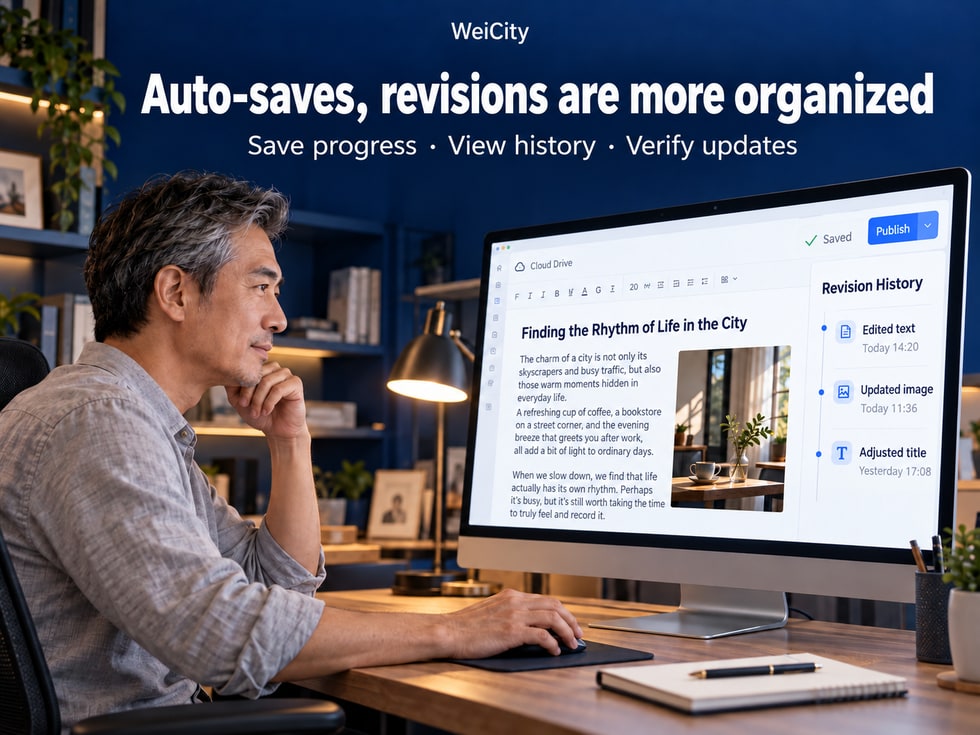
Writing a complete merchant article usually isn't finished in one sitting.
Sometimes you may write the title and body first, then add images later.
Sometimes, halfway through writing, a customer inquiry comes in and you have to step away from your computer.
You may also accidentally delete an important paragraph while editing and want to recover the earlier text.
In these situations, you may run into several questions:
💾 Has the text I just typed been saved?
⏳ The article is still saving. Can I close the page right away?
📝 If I stop halfway through, can I continue next time?
🕘 Can I view earlier versions of content I've changed?
🔄 If I accidentally delete text, can I get it back?
📢 When an article shows as saved, has the content customers see been updated?
For merchants who often publish brand introductions, product descriptions, service guides and professional knowledge, understanding how article saving and editing history work is very important.
WeiCity article auto-save and edit history serve different purposes: the first helps save your editing progress, while the second lets you review past content changes.
However, auto-save, edit history, version restoration and publishing are not exactly the same features.
The specific supported scope, save status, recorded content and restoration methods should be based on the features actually provided on WeiCity's current article editing page.
This article explains how to check an article's save status, understand edit history, handle accidental deletions, and reduce the risk of losing material while editing and publishing articles.
Auto-save means the editor automatically saves the content you are editing when certain conditions are met.
Its main purpose is to reduce the need for authors to rely entirely on manual saving.
For example:
You are writing a service introduction.
You have completed three sections.
Then you suddenly need to reply to a customer message.
If the editor supports auto-save, it may save the completed editing content according to the system settings.
A longer article doesn't necessarily have to be completed in one go.
For example:
Day one: organize the article structure.
Day two: add service details.
Day three: add images.
Day four: check the layout.
Some information needs to be confirmed with your team first.
For example:
Product specifications.
Service prices.
Business hours.
Appointment arrangements.
You can finish the confirmed parts first, then add the rest later.
When adjusting images, paragraphs and text, you can check the page display to confirm whether your changes have been saved.
When you need to leave your computer, you can first check the save status.
Different editors may use different mechanisms.
For example:
Some save after a short delay following input.
Some save after you stop typing.
Some save when specific content is changed.
Therefore, just because text is still visible in the editing area does not mean it has been successfully saved.
📌 Auto-save can help preserve your article progress, but you should still confirm the save result before leaving the page.
The most important way to determine whether an article has been saved is to check the status actually displayed on the editing page.
Different versions may use different wording or icons.
For example:
⏳ Saving.
💾 Saved.
⚠️ Save failed.
🌐 Network error.
These are common status examples and do not mean WeiCity's current page necessarily uses the same prompt text.
If the page shows that it is saving, we recommend waiting for the operation to finish.
Do not close the page or switch devices right away.
If the page clearly shows that the save was successful, you can further check whether important changes have been saved.
If an error message appears, do not rush to refresh the page.
First keep your important text, then check the problem.
If the network is interrupted, the editor may not be able to save the latest content to the server properly.
If the save status stays the same, you can first copy important content as a backup.
Suppose you are editing an article:
🏪 Merchant Service Introduction & Appointment Guide
You have just added:
📅 Appointment times.
📍 Service area.
💰 Pricing details.
If the page still shows that it is saving, we recommend waiting first.
If the save fails, keep these new contents first, then deal with the network or editing issue.
📌 To confirm a successful save, rely on the page status and the actual saved result, not just whether text is visible in the editing area.
Merchants often need to handle different tasks at the same time during business.
For example:
💬 Replying to customers.
📞 Answering phone calls.
📦 Processing orders.
🏪 Serving in-store customers.
📅 Schedule an appointment.
As a result, an article may need to be finished over several sessions.
If time allows, try to complete the sentence or paragraph you are writing.
This makes it easier to pick up where you left off next time.
Confirm whether the page shows that saving is complete.
For example:
Add the third section.
Replace the product photos.
Check the appointment instructions.
Add related links.
If the article is long, or contains content that would be hard to reorganize, you can save a separate text backup.
After confirming that important changes have been saved, close the page or leave.
Stage 1:
📝 Complete the title and body.
Stage 2:
🖼️ Add related images.
Stage 3:
🔗 Add links.
Stage 4:
📱 Check the mobile display.
Stage 5:
📢 Complete publishing.
If the browser closes, the device restarts or the network is interrupted, unsaved content may be lost.
📌 When writing in stages, get into the habit of checking the save status before leaving, which can reduce the risk of having to reorganize the article.
Auto-save and edit history both relate to article content, but they serve different purposes.
Mainly used to save your current editing progress.
For example:
Newly added text.
Revised paragraphs.
Adjusted article content.
Mainly used to review how changes were saved in the past.
For example:
What instructions were used previously.
When a particular change was made.
What content the article contained in the past.
Auto-save focuses on: whether current changes have been saved.
Edit history focuses on: what the content used to look like.
A beauty center originally published:
“The service time is about 60 minutes.”
Later, based on actual scheduling, it was changed to:
"Service time is approximately 75 minutes."
If the edit history retains the corresponding version, merchants may be able to view earlier descriptions.
However, whether you can view specific differences, how often records are created, and how long they are kept should be based on the current feature.
For example:
Typing one character.
Deleting one sentence.
Changing one punctuation mark.
Not every action necessarily creates a separate record that can be viewed.
📌 Auto-save helps keep your current progress, while edit history helps you review past changes. The two cannot fully replace each other.
After an article has been revised many times, the author may forget which wording was used before.
If the editor provides the relevant records, you can review them based on the actual content.
For example:
Previous service introductions.
Original product descriptions.
Past appointment arrangements.
Understand roughly when a particular change was made.
If the system provides difference comparison, you can view the content before and after a change.
When updating an article, you can refer to earlier wording.
For example:
When a particular passage changed.
Whether a particular description once existed.
A cleaning service merchant updates its service introduction.
Originally offered:
Residential cleaning.
Office cleaning.
Later added:
Pre- and post-move cleaning.
If the edit history includes the corresponding version, it may help merchants understand how the service description has changed.
For example:
Does it record draft edits?
Does it record official publishing?
Does it include images?
Does it provide time information?
Can versions be compared?
Does it support restoring?
All of these should be based on the features actually provided on WeiCity's current page.
📌 The value of edit history is helping merchants review past content, but you should not assume that every past change can always be recovered.
When editing an article, content may be deleted by mistake.
For example:
Deleting a paragraph may also delete other text next to it.
Adjusting a title may accidentally delete body text.
Replacing an image may affect nearby content.
If the deletion just happened, first check whether the editor supports undo.
On a Mac, the common keyboard shortcut is:
Command + Z(⌘Z)
However, the actual result depends on the editor.
If the deleted content has already been saved, you can check whether relevant history records exist.
If you previously saved the text in another document, you can recover the needed paragraph from that backup.
Sometimes the content has not been deleted; it is simply hard to find temporarily because the layout or editing blocks have changed.
If edit history offers a restore function, first confirm the scope of what will be restored.
This is because restoring an old version may also overwrite other newer edits that have already been completed.
Suppose the article originally contained:
🏪 Merchant introduction.
🛠️ Service content.
📅 Booking information.
🕒 Opening hours.
You only want to recover the old service introduction.
However, the business hours have already been updated.
If you restore the entire old article directly, the business hours may also revert to outdated information.
Therefore, a safer approach is to review the old content first, then choose which parts to restore based on the actual features available.
📌 When recovering deleted content, first confirm what needs to be recovered, then decide whether to use version restore, so you do not overwrite other correct information.
When an article contains an error, many people's first instinct is to restore it to an earlier state.
However, an old version is not necessarily entirely correct.
For example:
The product prices in the old version are already outdated.
The phone number in the old version has been discontinued.
The appointment process in the old version has changed.
Is it one character?
One paragraph?
One image?
Or the entire article?
For example:
The new business hours.
The latest product specifications.
Service descriptions that have been confirmed.
Look for old content that you need to refer to.
If the system allows copying or viewing historical text, you can reorganize it as needed.
If the system provides a restore action, first confirm its scope of impact.
Confirm that no outdated information has been brought back into the article.
📌 The purpose of recovering old content is to correct errors, not to revert all information to its earlier state.
This is a point that is easily confused in article management.
Saving content and officially publishing it are not necessarily the same action.
Mainly used to keep your editing progress.
May be used to keep article content that has not yet been made public.
If the system provides a preview feature, you can check how it looks before publishing.
Used to make the article public according to the platform's actual process.
Used to modify already published content according to the platform's actual process.
Suppose a restaurant changes its business hours.
Originally:
Open Monday through Saturday.
Now:
Open Monday through Sunday.
Even if the editor shows that it has been saved, you should further confirm whether the public page displays the new business schedule.
First, confirm the save status.
Then follow the publish or update process actually provided on the page.
Finally, reopen the public article and check the content.
Some editors distinguish between drafts and published content.
Some may use other update methods.
You cannot conclude that customers see an updated page just because it says "Saved."
📌 After finishing article changes, confirm both the edited content and the actual status of the public page.
Merchant articles may contain many images in addition to text.
For example:
📷 Product photos.
🏪 Store environment.
🛠️ Service case studies.
🍽️ Dish images.
📍 Directions to the store.
If a product's design or the store's environment has changed, you can update the related photos.
Confirm that the image displays completely.
After replacing an image, the original caption may no longer apply.
Avoid image adjustments affecting the arrangement of the body text.
Wait for image-related changes to finish saving.
Confirm that the new image displays properly.
A furniture store replaced its product photo.
The original showed a white storage cabinet.
The new photo shows a wood-colored storage cabinet.
If the text still says "white design," the image and text will not match.
Therefore, when updating an image, also check the corresponding text.
📌 Changing an image is not just about replacing the photo; you also need to confirm that the text description matches the actual product.
Merchant articles may contain related links.
For example:
🛍️ Product details.
🍽️ Menus.
🎟️ Promotions.
📷 Work Gallery.
📅 Booking information.
📍 Merchant channel.
If the related pages change, old links may no longer apply.
Confirm that the URL has no typing errors.
Confirm that the link still opens.
Make sure the description matches the destination page.
Confirm that the link works properly on mobile phones.
For example:
The old product has been removed from sale.
The event has ended.
The service introduction has been moved.
A bakery originally linked to its holiday gift box in an article.
After the event ends, check whether the related link needs to be removed or updated.
📌 When updating article content, also check related links to avoid sending customers to incorrect or outdated pages.
Revising an entire article at once can make it harder to spot omissions.
For example:
Changing prices, service processes, images, links, and business hours all at the same time.
If one item has a problem, it may be difficult to tell what caused it.
It is recommended to adjust content in batches by content type.
For example:
Business hours.
Address.
Phone number.
Appointment arrangements.
For example:
Scope of services.
Service processes.
Applicable conditions.
For example:
paragraphs.
subheadings.
Frequently asked questions.
For example:
Product photos.
Service case studies.
Store environments.
Confirm that the relevant entry points are correct.
After completing each important change, check the save status based on the actual page.
Confirm that the published article displays correctly.
📌 Making changes in batches makes each adjustment easier to verify and helps reduce omissions.
If the current version of WeiCity supports accessing article editing on different devices, merchants may want to switch between a computer and a phone.
For example:
💻 Write a long article on the computer.
📱 Check the display on the phone.
💻 Return to the computer to add images.
However, if two devices edit the same article at the same time, extra care is needed.
For example:
Service content is changed on the computer.
The phone still shows the old content.
If the phone saves again later, content conflicts may occur.
Whether content gets overwritten depends on the editor's synchronization and conflict-handling mechanisms.
Finish editing on the current device first.
Confirm that the save was successful.
Exit the current editing state.
Then open the article on the other device.
Confirm that you are seeing the latest content.
Especially for long articles or content involving important business information.
📌 When editing across multiple devices, avoid modifying the same article at the same time to reduce the risk of different versions overwriting one another.
Article editing usually depends on the current page and network connection.
If the network is unstable, saving may be affected.
For example:
🌐 The network suddenly disconnects.
📶 The Wi-Fi signal is unstable.
💻 The computer goes to sleep.
🔄 The browser reloads unexpectedly.
If the save status is abnormal, refreshing the page may cause unsaved content to be lost.
You can first copy your latest changes into a local document.
Confirm that your device is connected to the network normally.
Once the network is restored, check based on the actual operations on the page.
Confirm that the article does not lack the parts you just changed.
You can first keep a text backup, then check based on the actual situation.
Do not assume the server has saved successfully just because the editing area still shows the complete content.
📌 When the network is abnormal, prioritize protecting unsaved text before dealing with editor issues.
Automatic saving and edit history can help manage articles, but important content is still worth keeping in a separate backup.
Especially:
📘 Long professional articles.
🛠️ Detailed service guides.
📋 Important business notices.
📚 Educational content.
📝 Articles that need multiple revisions.
You can save the original draft in a document you use.
For example:
“Merchant Service Introduction | 2026-10-16”
For example:
Version before the change.
Version after the change.
This avoids the need to remake or look for them again.
This makes them easier to check later.
For example:
WeiCity_Merchant_Service_Introduction_2026-10-16
WeiCity_Booking_Guide_2026-10-16
WeiCity_Product_Description_2026-10-16
Do not copy unnecessary personal information to public or insecure locations.
📌 Automatic saving supports everyday editing, while separate backups add an extra layer of protection for important content.
After publishing an article, merchants may hope the content can help more people find out about their business through search.
However, when article content changes, it is also necessary to consider whether the information remains accurate.
For example:
🏡 What Should Be Prepared Before Consulting on a Renovation?
Avoid continuing to introduce services that have stopped being offered.
If prices change, check the related descriptions.
Especially after the merchant relocates.
Reduce the number of related pages that cannot be accessed.
Avoid misunderstandings caused by old photos.
Events that have already ended should be marked with the appropriate status.
Search engines need to recrawl and process pages, and the timing of updates to displayed information is not fixed.
Nor can it guarantee that revisions will improve search rankings.
📌 Maintaining articles regularly is primarily about helping customers see accurate information, and it also helps keep web content relevant.
Refer to the automatic saving features and status actually provided by the current article editor.
Not necessarily. The specific trigger depends on the editor.
It is recommended to confirm that saving is complete before leaving the page.
Check the save status and keep a backup of important content.
It is used to view the historical change information the system actually retains.
Not necessarily. It depends on the recording mechanism.
If the related content is still kept in accessible edit history, you can view it according to the actual feature.
You can first try undoing, and check whether there is a history record or backup. Whether recovery is possible depends on the actual feature and the scope of the records.
It may. Therefore, confirm the restore scope before taking action.
Not necessarily. Saving and publishing may be different actions.
Refer to the actual publishing mechanism and the display on the public page.
This cannot be guaranteed. Network issues may affect saving.
Even if multi-device access is supported, it is recommended to avoid modifying the same article at the same time.
Do not assume it is kept permanently. The specific retention period should be based on the current system.
It depends on the actual scope of recording.
It is recommended to keep a separate backup, especially for longer or important content.
📌 Automatic saving, edit history, and backups each serve different purposes. Using them together can help keep article management organized.
Whether you have just finished an article or only changed one paragraph, you can build a simple checking habit.
Check whether the page shows that the save was successful.
Check the content you have just added or changed.
Confirm that no images are missing and that none display abnormally.
Check whether important links are correct.
Confirm that event, booking, and business information is accurate.
Longer or important original drafts can be saved separately.
If you need to update publicly, confirm that the actual publishing step has been completed.
Reopen the article and check it from the reader's perspective.
Because repeating the same checking steps with every edit can help reduce omissions.
This is especially true for merchants who often need to update products, services, and business information.
📌 Confirming that your work is saved before leaving, and checking the results after publishing, are habits worth building in article management.
Merchant articles do not necessarily have to be written all at once.
A complete piece of content may need to go through several stages.
First, organize the topic.
Then, write the body text.
Next, add images.
Then, check the layout.
Finally, complete the publication.
As the business develops, articles may also need to be revised continually.
For example:
🛍️ Updating product specifications.
🛠️ Adjusting service items.
📅 Changing the booking process.
📍 Updating the store address.
🕒 Changing business hours.
You can organize content in batches according to your actual work schedule.
Pay attention to the saving status shown on the current page.
Depending on the record features available, view the historical content you need.
Keep the correct new information and avoid using outdated content by mistake.
Complete the operation according to the actual publishing process.
Check whether the article is correct from the customer's perspective.
The value of WeiCity's automatic saving and editing records lies in helping merchants manage content in a more organized way, not only in completing a single publication.
For merchants who often write in multiple sessions, automatic saving can help preserve editing progress.
For authors who continually update articles, editing records can provide a reference for reviewing past content.
However, regardless of which editing tool you use, important content should still be backed up appropriately, and you should confirm the saving status before leaving the editing page.
💾 Halfway through writing? Confirm that it is saved first.
🕘 After making changes, review the records when needed.
🔄 If you find an error, handle older versions with care.
📢 After completing changes, check the public page.
📝 Make every article easy to keep organized, update, and use over time.
The specific features for automatic saving, manual saving, editing records, historical versions, content recovery, drafts, previews, and publishing depend on the current WeiCity editing page and the features available to your account.
👉 Open WeiCity: https://wei.city/