
3 How to Use a Business Card QR Code: From Display to Scanning and Adding Contacts
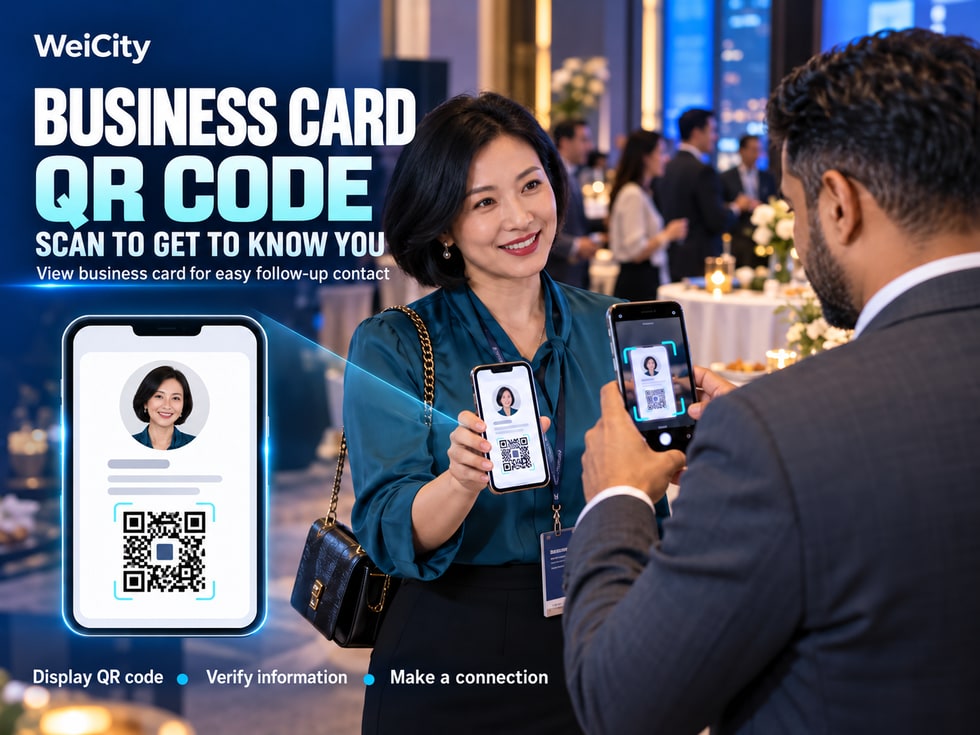
Show your WeiCity business card QR code during face-to-face conversations so others can view your information, then choose whether to add or save your contact details
At events, when receiving clients or meeting new people, a business card QR code can reduce the steps of manually entering names and searching for accounts. This article explains how to display and scan a WeiCity business card QR code and verify the information, and describes the differences between viewing a business card, adding a platform contact and saving a phone contact, so follow-up contact is clearer.
Have you often run into these situations when attending business events, meeting clients, getting to know new people, or meeting a partner for the first time?
👤 The other person wants to know your name and professional role.
💼 The client wants to know what services you provide.
📞 Both sides need to exchange phone numbers.
💬 They hope to stay in touch later.
🔎 The other person wants to find your personal page but does not know what to search for.
Traditional ways of exchanging contact details may require reading out phone numbers, typing names manually, or searching for accounts across different social platforms.
In a noisy venue, a phone number may be misheard.
If there are users with the same name, the other person may also fail to find the correct personal page.
A WeiCity digital business card QR code can serve as an entry point to an e-card or personal page, allowing the other person to scan and view the personal information you have already made public, reducing the steps of manual entry and searching.
For salespeople, freelancers, business owners and anyone who often attends business events, a business card QR code can be a convenient tool for everyday communication.
However, note that scanning a QR code, viewing an e-card, adding a platform contact and saving a phone address book entry are different actions.
A successful scan does not mean a phone number has been saved automatically, nor does it mean a platform contact relationship has been established between the two parties.
This article introduces the purpose of the WeiCity business card QR code, how to display and scan it, the differences in saving contacts, and how it is used in practice at business events, store reception and promotional materials.
A business card QR code (Digital Business Card QR Code) is a way to access a designated e-card or personal page through a QR code.
If the current WeiCity business card page offers a QR code feature, you can use the QR code generated there so that the other person can scan it with a compatible phone.
👤 View personal identity.
📷 Confirm name and photo.
💼 Understand professional role.
🏢 View publicly available company information.
📝 Read a personal introduction.
📞 Check publicly available contact details.
🤝 Follow up using the features provided on the page.
Suppose you are a real estate consultant in Penang.
At a business networking event, you meet a client who may need property advice.
The other person would like to keep your contact details.
You can show your WeiCity business card QR code so they can scan it and view the corresponding personal page.
If the page already presents your professional role, business introduction and contact details, they can learn more about your services.
Because the other person does not need to:
Type a full web address manually.
Search for your name again.
Identify you among several accounts with the same name.
Enter your basic details one by one.
The QR code is only an entry point to the corresponding page or information.
The actual content and available actions after scanning are subject to what WeiCity currently displays on the page.
📌 The core value of a business card QR code is to make exchanging personal information more convenient in face-to-face meetings.
A QR code can help others find your page.
However, what truly determines whether others can get to know you is the information displayed on the page.
Therefore, before sharing, you should organize your digital business card first.
Recommended:
A clear photo.
A natural expression.
A personal image that is easy to recognize.
An image suitable for public display.
Use a name that clients or friends are familiar with.
For example:
Chinese name.
English name.
Use the working name you commonly go by.
For example:
Property consultant.
Photographer.
Insurance agent.
Sales Consultant.
Interior designer.
Education consultant.
If you represent a company, confirm that the name is correct.
Use short text to explain what services you provide.
Check:
Phone number.
Country code.
Email address.
Other publicly available contact channels.
Do not make public any sensitive information unrelated to business communication.
A photographer's business card could be introduced like this:
Name: Amy Tan
Role: Photographer
Area: Penang, Malaysia
Introduction: Provides family photography, personal portrait photography and small event photography services. Feel free to contact us to learn about availability and shoot arrangements.
The above is sample information only.
Because after scanning, people usually want to know right away:
Who are you?
What services do you provide?
How can I contact you?
📌 The QR code connects to the page, and clear personal information helps others get to know you.
Before using it, you first need to find the QR code entry actually provided for your current account.
Page layouts may differ between versions.
Log in to your account.
Confirm that you are viewing your own information.
Check whether the page offers:
Business card QR code.
Share QR code.
Personal page QR code.
Other relevant sharing options.
If the page provides this feature, follow the prompts shown.
Make sure it corresponds to your own digital business card or personal page.
Scan it with another phone.
Check whether the correct information is displayed after it opens.
First confirm whether your current account and page provide this feature.
Do not assume that all personal pages have the same QR code entry point.
📌 Before showing a QR code, first confirm that it corresponds to the correct personal page.
Business interactions usually take place in different environments.
For example:
Office.
Restaurant.
Exhibition.
Shopping mall.
Business meeting.
Client reception area.
These places may have differences in lighting, glare, or network conditions.
Therefore, pay attention to a few details when showing a QR code.
Make sure the entire QR code is visible on the phone screen.
Avoid a screen that is too dark.
If there is noticeable glare, adjust the angle as needed.
Give the other person enough time to scan.
Do not hold the phone too close.
Do not hold it too far away either.
Confirm that the page that opens is your digital business card.
For example:
"This is my WeiCity business card QR code. You can scan it to view my work introduction and contact details."
You have just met a potential business partner.
When the conversation ends, you could say:
"Nice to meet you. This is my digital business card QR code, so you can easily find my information later."
Let them choose whether to share, based on their own wishes.
📌 When showing a QR code, the most important things are that it is clear and steady, and that the other person knows what they will see after scanning.
The person who receives a QR code can use a phone feature that supports QR code recognition to scan it.
The exact steps depend on the phone model and app.
For example:
Phone camera.
System scanning feature.
Relevant WeiCity scanning entry points currently offered (if any).
Bring the complete pattern within the scanning area.
If it cannot be recognized, move the phone slightly.
Avoid glare or a screen that is too dark.
Confirm that the link matches what you expected.
View:
Name.
Photo.
Work role.
Other public information.
For example:
View contact details.
Contact further.
Use other features actually provided on the page.
Some phones or apps support recognizing QR codes from images.
You can check whether your current device provides the corresponding feature.
The exact steps vary by device and app.
📌 After scanning, first confirm that the personal page that opens is the correct one, then decide whether to save it or make contact.
This is a point that is especially easy to confuse when using digital business cards.
Many people assume:
"If someone scanned my QR code, they have already added me."
In fact, that is not necessarily the case.
These actions should be understood separately.
Main purpose:
Open the corresponding page.
View public information.
Learn about the person's identity.
A successful scan does not mean the contact has been saved.
If the current page provides an add-contact feature, you can follow the prompts shown.
This may involve:
Logging in to your account.
Initiating the addition.
Confirmation by the other person.
The specific process is subject to the platform's current features.
If the business card page provides a save-contact feature, you can save the relevant information by following your phone's prompts.
This may usually include:
Name.
Phone number.
Email address.
Company name.
If the page provides available contact channels, you can, as needed:
Make a phone call.
Send an email.
Use other contact methods that are actually supported.
| Action | Main purpose | Does it mean the contact has been saved? |
|---|---|---|
| 📲 Scan QR code | Open the corresponding page | Not necessarily |
| 👀 View business card | Read public information | No |
| 🤝 Add platform contact | Establish a contact relationship within the platform | Depends on the result of the action |
| 📇 Save Contact | Store the information in the phone's contacts | Only counts once saving is completed |
A customer scans your QR code.
Opens your personal page.
Views your work introduction.
But does not save the number any further.
This means the other person has viewed your business card, not that your contact details are already in their phone's address book.
📌 Scanning is the start; adding and saving require completing the corresponding actions, based on the features actually available.
One purpose of exchanging business cards is to make it easy for both parties to contact each other again in the future.
Therefore, in addition to showing the QR code, you should also check that your contact details are complete.
Let the other person know how to save your name.
For example:
John | Property Consultant.
Amy | Photographer.
It is recommended to check the country code.
Use a work email address that you check regularly.
If the current WeiCity business card provides a save-to-address-book entry, you can follow the prompts shown.
Make sure there are no:
Incorrect numbers.
Incorrect names.
Duplicate contacts.
Not necessarily.
If the other person has already saved your phone number on their phone, changing your online business card later does not mean their address book will sync automatically.
📌 Making contact details easy to save helps the other person find you more quickly when they need you later.
Business events usually involve meeting many new contacts and potential business partners.
If you exchange phone numbers manually every time, it may take considerable time.
A business card QR code can offer another option.
After meeting new contacts, show your personal QR code.
After talking with a potential customer, provide access to your business card.
Make it convenient for partners to view your personal work identity.
In suitable networking settings, share the contact details of the speaker or person in charge.
Let clients know which person in charge they can contact later.
You attend a business networking event in Penang.
You meet a food and beverage business operator.
They would like to learn about your services.
You can show your digital business card QR code and explain:
"This is my personal business card, which includes my work introduction and contact details, so you can get in touch with me later."
Prepare your QR code in advance.
Check the network.
Confirm your personal information.
Test the scanning experience.
If the on-site network is unstable, you can also provide other contact methods as appropriate.
📌 At business events, a business card QR code can reduce the steps of entering information manually and make interactions more convenient.
Business card QR codes are not only suitable for individuals, but also for merchant managers and staff who need to communicate directly with customers.
Can be used to introduce:
Your identity as a person in charge.
Work contact details.
Relevant business contact information.
Can be used to introduce:
Sales representative's name.
Work role.
Contact details for product inquiries.
Can be used to introduce:
Personal identity.
Service area.
Contact methods.
Can be used to introduce:
The photographer's identity.
Scope of services.
How to book a consultation.
Can be used to introduce:
Course Consultant.
Head of Enrollment.
Relevant contact information.
A hardware store may have several sales staff.
Depending on the features available in each actual account, different sales representatives can use their own personal digital business cards.
When a customer later asks about products, it becomes easier to find the person they previously dealt with.
Personal digital business cards mainly introduce personal identity.
Merchant channels mainly showcase brands, products, and services.
📌 For merchants, the business card QR code is suitable for helping customers find a specific person in charge, while the merchant channel is better for showcasing the business in more depth.
Both can point to the same or related personal page, but they are shared in different ways.
Suitable for:
WhatsApp.
Email.
Social media.
Online introductions.
Suitable for:
Face-to-face communication.
Business meetings.
Exhibitions and events.
Printed business cards.
Promotional materials.
If you communicate with customers via WhatsApp, you can send your personal link directly.
If you meet customers face to face, you can show your business card QR code.
Online communication: You can prioritize using your personal link.
Offline communication: You may consider using the QR code.
Is the link correct?
Whether the page can be accessed.
Whether the information is complete.
📌 Personal links are easy to click and QR codes are easy to scan; the two can be used together depending on the communication scenario.
An NFC business card is also a common way to share information at close range.
However, NFC and QR codes use different technologies.
Recognized by a phone camera or scanning function.
Information stored in an NFC tag is read by a compatible device.
| Comparison Item | 📲 QR Code | 🤝 NFC |
|---|---|---|
| How It Is Used | Phone scans a pattern | Read at close range by a compatible device |
| Requires a visible pattern? | Usually yes | Not necessarily |
| Common carriers | Phones, images, paper | NFC tags or cards |
| Device requirements | Supports QR code recognition | Supports relevant NFC reading |
| Main Purpose | Open the corresponding page | Reads a specified information entry point |
A physical business card can be printed with a QR code.
If a separate NFC tag is configured, it can also provide a close-range reading method.
Both can point to the same personal page.
Not all phones support the same NFC reading operations.
Whether WeiCity offers physical NFC business cards or related configuration services should be confirmed based on actual product features.
📌 Both QR codes and NFC can help share personal information, but the choice should depend on the device and actual conditions of use.
If you want to print the WeiCity business card QR code on paper business cards, pay attention to how well it can be recognized after printing.
Confirm that it corresponds to the intended personal page.
Avoid using blurry screenshots.
Make sure users can easily scan it at a normal viewing distance.
Leave appropriate blank space around the QR code.
Avoid colors on the QR code that are too close to the background.
Do not let text, decorations, or other images cover the QR code.
For example:
📲 Scan to view my WeiCity digital business card
Scan the design file with a phone before printing.
After receiving the printed product, test it again.
If you later change your username or personal link, retest any QR codes that have already been printed.
📌 Before printing a QR code, confirm that the pattern is clear, the link is correct, and actual scanning works without problems.
It is best to include a short explanation beside the QR code.
Without an explanation, users may not know what will open after scanning.
📲 Scan to view my digital business card
🤝 Scan to get to know me and stay in touch
📇 Scan to view my contact details
👤 Scan to view the manager's business card
🔗 Scan to view my personal introduction
It is recommended to state directly the purpose of scanning.
Avoid using:
"Get customers instantly."
"Scan to add friends automatically."
"Scan to save contacts automatically."
Unless the actual features truly support the corresponding actions.
Because scanning usually only opens a page.
Whether users go on to add contacts or save information depends on the actual features and the results of their actions.
📌 QR code captions should be accurate and concise, so users can understand the purpose of scanning at a glance.
Sometimes a QR code is displayed, but the other person's phone cannot recognize it.
You can check the following areas.
Repeated screenshots or compression may affect clarity.
The phone may have difficulty recognizing it.
The edges of the QR code may have been cropped.
The background and pattern are too similar.
Light reflections may affect recognition.
Try adjusting the distance between the phone and the code.
After the QR code is recognized, opening an online page may still be affected by the network.
The QR code may point to an old URL.
Some pages may require login or have access conditions.
First, confirm the QR code is clear.
Next, test whether the phone can recognize it.
Then, confirm whether the link opens.
Finally, check whether the page is correct.
📌 A failed scan does not necessarily mean the QR code feature is faulty; it may be related to the image, the device, the network, or the link.
QR codes are convenient to share, but they can also be screenshotted, forwarded, or spread in print.
For this reason, the public page that a QR code leads to needs privacy attention.
Confirm that it is suitable to be public.
Use photos you are willing to make public.
Make sure the information is true and accurate.
Preferably use a work number.
Use an email address suitable for business communication.
Avoid making private addresses unrelated to business public.
Do not make sensitive information public, such as ID card numbers or passport numbers.
Confirm that it does not unintentionally point to private files or pages.
Even if it was first shown to only one customer, consider that the QR code may be photographed or forwarded.
📌 The easier a business card QR code is to spread, the more important it is to ensure that the corresponding page shows only information suitable for public viewing.
Is it correct?
Is it clear?
Is it accurate?
Is it easy to understand?
Is it valid?
Is it correct?
Is it working normally?
Can it be opened?
Is it suitable for public display?
Is it clear and complete?
Is it easy to view?
Can the actual contact details or relevant action entry point be found?
Have another user scan the QR code.
Confirm:
It is recognized.
The correct page opens.
Your identity is clear.
The needed contact information can be found.
📌 Running a real scan test before publishing is more important than only checking the QR code image.
A QR code entry point used to access the corresponding digital business card or personal page.
Usually the corresponding page or information opens based on the QR code content. The actual display shall prevail.
Not necessarily. Whether a contact is added successfully depends on the actual features and the result of the operation.
Not necessarily. Saving to contacts usually requires the relevant feature and user action.
If your phone camera supports the relevant QR code recognition, you can follow the system prompts.
Some devices and apps support image recognition. The specific steps depend on the device.
It can be considered for printing, but you should test its clarity and link first.
It can be used as needed, with a clear explanation of its purpose.
Personal links are easy to tap, while QR codes are easy to scan.
No. The two use different ways of reading information.
This cannot be guaranteed. Please scan it again to test.
It may be related to the link, network, access permissions, or the device.
If the QR code and its corresponding link are still valid, it can usually be reused.
Whether automatic syncing is supported cannot be determined from the QR code alone.
No guarantee can be made, but it can make it easier for people who need it to view personal information and contact details.
📌 The business card QR code mainly addresses access to and sharing of information. Follow-up contact still depends on the user completing it through the actual features.
If you are ready to start using a digital business card QR code, you can begin by organizing your personal information.
Check your name, photo, and work identity.
Describe your main business and service focus.
Make sure your phone number and email address are correct.
Use the features actually provided on the current page.
Confirm that it corresponds to the correct personal page.
Check the scanning and access results.
For example:
“This is my WeiCity digital business card. You can scan the code to view my introduction and contact details.”
For example:
Business meetings.
Client visits.
Exhibitions and events.
Personal introduction.
If the actual features and links allow, you may further consider:
Sharing your digital business card.
Sharing your personal link.
Printing the QR code.
Pairing with an NFC business card.
📌 For first-time use, you do not need a complex design. First make sure the QR code is correct, the page is clear, and the contact details are valid.
Each time you meet a new friend or customer, it may take only a few minutes.
But whether they can find you later often depends on whether clear contact information was left at that time.
Traditional paper business cards help exchange names and phone numbers.
Digital business cards can organize more publicly shareable information through online pages.
Business card QR codes further provide a convenient way to access this information.
Let people know who you are.
Helps others recognize you.
Let others learn about your business.
Make it easier to exchange information face to face.
Provide an online access entry point.
Save contact information according to the actual features.
Give a first meeting the chance to continue.
Only make information suitable for external display public.
The value of a WeiCity business card QR code is that individuals, salespeople, freelancers, and business owners can share a digital business card or personal page by scan.
For people who meet you for the first time, it can reduce the steps of manually typing web addresses or searching for accounts.
For customers who need follow-up contact, it can provide an entry point to view your personal information again.
For people who often attend business events, it can make it easier to show identity and contact details during face-to-face communication.
However, the QR code itself cannot replace all contact actions.
The key is to:
👤 Organize clear personal information first.
📲 Display the correct business card QR code.
🔎 Confirm that scanning opens the correct page.
📞 Make it easy for others to find your contact details.
📇 Save to your phone contacts as needed.
🤝 Continue communicating through suitable methods.
Start with a correct, clear, and easy-to-scan WeiCity business card QR code. This makes exchanging contact information face to face more convenient and gives you an easy-to-find personal entry point after a first meeting.
Specific digital business cards, QR code generation, scanning entry points, platform contact addition, phone contact saving, personal links, NFC pairing methods, and access permissions are subject to WeiCity's current actual pages and the features available to your account.
👉 Open WeiCity: https://wei.city/