

6 How to Sort and Arrange Your Merchant Gallery? Help Customers Find the Photos They Want Faster
From section names and cover selection to image order, organize scattered photos into clear, easy-to-browse content
As your merchant gallery grows, how should you organize it? This article explains how to group images by theme based on customer needs, name sections, select covers, and arrange display order. Using an example from a retail store, it shows how to reduce clutter so customers can quickly find photos of products, environments, or case studies.
As merchants keep uploading product photos, service cases, store environments, and event images, the Gallery can grow larger and larger.
If all photos are placed together, customers may need to keep scrolling to find the products or works that interest them.
🖼️ With clear theme categories, descriptive image names, and a thoughtful display order, merchants can make the Gallery easier to browse and help customers quickly find what they need.
When you first set up a Gallery, there are only a few photos, so customers can view them one by one and get a general idea.
As new products, cases, and event photos keep being added, different types of content get mixed together, and customers may need to keep searching to find the images they like.
For example:
🛍️ Customers who want to buy products: want to quickly find product photos and details.
🏪 Customers planning to visit in person: want to see the storefront, entrance, and interior environment.
🛠️ Customers looking for a service: want to refer to related service cases.
🎨 Customers looking for design inspiration: want to browse representative works in different styles.
In this case, you can first organize content by theme, then arrange the display order.
📌 The purpose of Gallery categories is not just to separate photos, but to help customers know where to start looking.
Category names can be based on what customers are looking for when they browse.
For example, customers of a furniture store may want to find sofas, dining sets, storage cabinets, or see the showroom environment.
Merchants can then organize images around these needs.
🛋️ Sofas
Show different series, styles, and related details.
🍽️ Dining Sets
Show product appearance, dimensions, and styling combinations.
🗄️ Storage Furniture
Show cabinet bodies, interior space, and how they are used.
🏪 Showroom Environment
Help customers understand the in-store display and the actual space.
Different merchants can use different themes.
For example:
🍰 Bakery merchants can use “Birthday Cakes,” “Desserts,” and “Festival Gift Boxes.”
💐 Flower shops can use “Birthday Bouquets,” “Wedding Florals,” and “Opening Flower Gifts.”
📷 Photography studios can use “Family Portraits,” “Personal Portraits,” and “Event Photography.”
🛠️ Repair merchants can use “Repair Cases,” “Installation Cases,” and “Finished Results.”
Categories should match actual business and be easy for first-time customers to understand.
Category names do not need to be long. The key is that customers can see them and immediately know what is inside.
For example:
✅ Product Display.
✅ Store environment.
✅ Renovation Cases.
✅ Family Portraits.
✅ Dining Sets.
These names directly describe the content.
In contrast, the following names may not be clear enough:
❌ Highlights.
❌ More Discoveries.
❌ Selected Content.
❌ Other Photos.
These names are vague, and customers may not know what they will see when they open them.
❌ Our Great Works.
✅ Family Portraits.
❌ More Photography Content.
✅ Product Photography.
❌ Selected Moments.
✅ Event Records.
📌 Keep category titles concise, and put detailed background in image or project descriptions.
A single batch of photos may have several characteristics at once.
For example:
A photo of a blue sofa belongs to sofas, blue furniture, and possibly living room styling.
If categories mix products, colors, years, and locations, customers may find it hard to tell where to start.
It is recommended to first choose one primary categorization method.
Suitable for retail and product-selling merchants.
For example:
🛋️ Sofas.
🍽️ Dining Sets.
🗄️ Storage Cabinets.
Suitable for repair, renovation, cleaning, and other service merchants.
For example:
🔧 Repair services.
🔌 Installation Services.
🧹 Cleaning Cases.
Suitable for design, photography, and creative merchants.
For example:
📷 Family Portraits.
👤 Personal Portraits.
🎉 Event Photography.
If you categorize by product type, you can add color, style, and use in image titles or descriptions.
For example:
Sofa | Navy blue fabric three-seater style.
First standardize the main categorization rule, then adjust based on content volume and customer needs.
When starting out, you can set up a small number of main themes first, without splitting everything into fine detail.
If a theme has only one or two photos and is closely related to other themes, you can combine them for now.
For example:
When a clothing store first sets up its Gallery, it can start with:
👕 Tops
👖 Bottoms
👜 Accessories
When skirt photos clearly increase and customers often ask about them separately, consider adding:
👗 Skirts
Similarly, a furniture store can start with “Sofas,” “Dining Sets,” and “Storage Furniture.”
After the number of sofa products grows, you can distinguish different series or uses as needed.
✅ The number of photos in a category has clearly increased.
✅ Customers often ask about that type of product separately.
✅ The existing theme already contains too many different types of content.
✅ A new category would help customers find the photos they need more quickly.
The purpose of categories is to help customers find content, not to give every name its own separate place.
When choosing a theme cover, prioritize photos with a clear subject that remain easy to recognize when reduced in size.
The cover should match the theme.
For example:
🏪 Store Environment
Use a photo that clearly shows the main space.
🍽️ Dining Sets
Use a complete dining set arrangement.
📷 Family Portraits
Use a representative family photography work.
🛋️ Sofas
Use a photo that clearly shows the appearance of the sofa.
🛠️ Repair Cases
Use a photo that represents the main repair projects.
✅ Is the subject clear?
✅ Does the photo match the theme?
✅ Is it easy to recognize when reduced in size?
✅ Does it represent the main content of the theme?
✅ Does it use products or cases that are still currently available?
For example:
If the cover of the “Dining Sets” theme shows only a detail of one chair, customers may not easily tell what the main content is.
Using a complete dining set arrangement is usually easier to understand.
📌 A cover should accurately reflect the theme’s content and avoid giving customers the wrong expectations.
When arranging order, you can first show highly representative images with current information, then add other content.
Within the same theme, you can organize content using the following approach:
⭐ Part 1: Main products or representative works
Help customers quickly understand the theme content.
🔍 Part 2: Different angles and important details
Help customers further understand the features of the products or works.
🏡 Part 3: Usage scenarios and related cases
Show actual styling, usage methods, or finished results.
📝 Part 4: Necessary notes and consultation guidance
Help customers understand relevant conditions and how to contact you for more information.
For example:
📸 First image: full view of the sofa.
↔️ Second image: side and back views.
🔍 Third image: fabric texture and details.
📏 Fourth image: size reference.
🏠 Fifth image: placement in the living room.
The specific order can be adjusted to suit your business.
For event records with clear dates, arranging them by time is usually easier to understand.
📌 Showing what customers most want to see first, then adding details, is usually easier to browse than random ordering.
If the front, back, and detail photos of one product are scattered across different places, customers may not be able to tell whether they belong to the same style.
You can use consistent product or project names to link related photos together.
For example:
📸 Solid Wood Dining Table Model A | Overall Appearance
Shows the complete tabletop and table leg design.
🔍 Solid Wood Dining Table Model A | Tabletop Texture
Show the wood surface and key details.
🪑 Solid Wood Dining Table A | With Dining Chairs
Show how the dining table and dining chairs look together.
📏 Solid Wood Dining Table A | Size Reference
Help customers understand the actual size.
Even if the display position changes, customers can still understand how the images relate to each other from their names.
Service cases and design works can also use the same method.
For example:
🏠 Living Room Renovation Case A | Overall Look.
🪵 Living Room Renovation Case A | Material Details.
💡 Living Room Renovation Case A | Lighting Design.
Consistent names help customers understand which photos belong to the same product or project.
When organizing the Gallery, check for duplicate uploads, similar angles, or photos with unclear themes.
For example:
❌ Five almost identical front-view photos of the same product uploaded in a row.
❌ Photos of different projects mixed together without names.
❌ Image titles that are only "Photo 1" or "Photo 2".
❌ Products that are no longer sold still used as main display content.
❌ A large number of photos placed under "Other Content".
✅ Delete duplicate uploads.
✅ Keep clearer and more representative angles.
✅ Add names for different products and projects.
✅ Check whether outdated content is still suitable for display.
✅ Reorganize images with unclear themes.
If "Other Photos" keeps growing, the existing categories may need adjusting.
Some content may also no longer be suitable to keep in the public Gallery.
📌 Clear, useful photos are more valuable for display than large numbers of repetitive or hard-to-understand images.
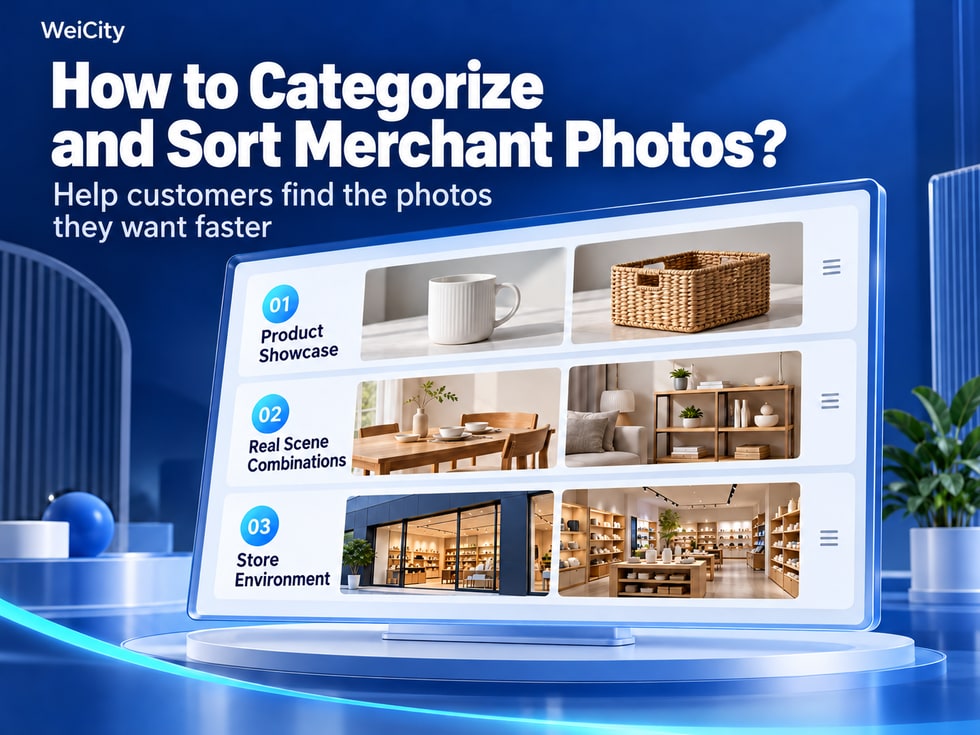
Suppose a home goods store has product photos, styled room scenes, and store photos. It can first organize them into three main themes.
Content can be organized by product type.
☕ Cups and mugs.
🧺 Storage products.
🛏️ Home textiles.
🍽️ Tableware.
Each product can show its overall appearance, important details, and size information.
Show how products look and are used in different spaces.
🍽️ Dining table styling.
🛋️ Living room arrangements.
🛏️ Bedroom setups.
📚 Shelving and storage scenes.
Help customers see how products fit into everyday life.
Show photos related to the physical store.
📍 Store front.
🚪 The main entrance.
🛍️ Merchandise display area.
🪑 Overall store space.
For each theme, place one clear representative image first, then arrange related photos after it.
This way:
🛍️ Customers looking for products can start with Product Display.
🏠 Customers who want to see styling ideas can browse the styled room scenes.
📍 Customers planning to visit can refer to the store environment photos.
Helping customers with different needs find the content they want is the main value of organizing the Gallery by category.
After organizing, you can use a phone to simulate a real search.
For example:
🔍 Task 1: Find the detail photos of a certain product.
🛠️ Task 2: Find the complete case of a certain service project.
🏪 Task 3: Find the store front and entrance photos.
🎨 Task 4: Find representative works in a certain style.
📏 Task 5: Find product sizes or usage scenes.
If you need to keep searching repeatedly, check the following:
✅ Are the category names clear?
✅ Are related images grouped together?
✅ Are the representative images appropriate?
✅ Are the image names easy to recognize?
✅ Is there too much repeated content?
You can also ask someone unfamiliar with the content to look for a specified photo and observe where they get confused.
📱 Is the Gallery easy to use? It is not enough for categories to look neat; what matters more is whether customers can quickly find the photos they want to see.
Before publishing photos to a WeiCity merchant channel, you can first standardize the themes, names, and display approach, then arrange content according to the categories and sorting options the current Gallery supports.
A simple organising process is:
📂 Step 1: Define the main themes
Divide content by product, service, work, or environment.
🏷️ Step 2: Standardize image names
Use accurate product names, project names, and display highlights.
🖼️ Step 3: Choose representative images
Give priority to photos that clearly show the theme.
👀 Step 4: Arrange the display order
Show the main content first, then add details and scenes.
🧹 Step 5: Check for duplicate and outdated photos
Keep content that is still valuable for display.
📱 Step 6: Check on a phone
Confirm that customers can understand the theme and find the photos they need.
If a certain categorization method cannot be set directly for now, you can still help customers identify the themes through clear image titles and relevant descriptions.
For retail, dining, photography, design, renovation, repair, and other merchants, Gallery content will keep growing as the business develops.
Establishing a consistent organization method makes it easier to manage new photos later and gives customers a clearer direction when browsing.
📂 Make sure category names, representative images, and actual content correspond to each other, helping customers find the products, works, and service cases they want more quickly.
🌐 WeiCity | Make merchant images clearer, helping customers go from browsing the Gallery to finding what they need and contacting you for more information.