

6 How to Set a Password for a Cloud Drive Folder? A Management Guide for Contracts and Financial Materials
Lock important folders separately so that even the account owner must unlock them to open, keeping contracts, financial files and customer materials managed separately.
WeiCity Cloud Drive supports setting a separate access password for folders. Before entering or operating on the related materials, you must unlock them, and the account holder is also subject to this requirement. This article introduces the uses of folder password protection, setup approaches, precautions when sharing, and how to handle a forgotten password, helping merchants manage important work materials.
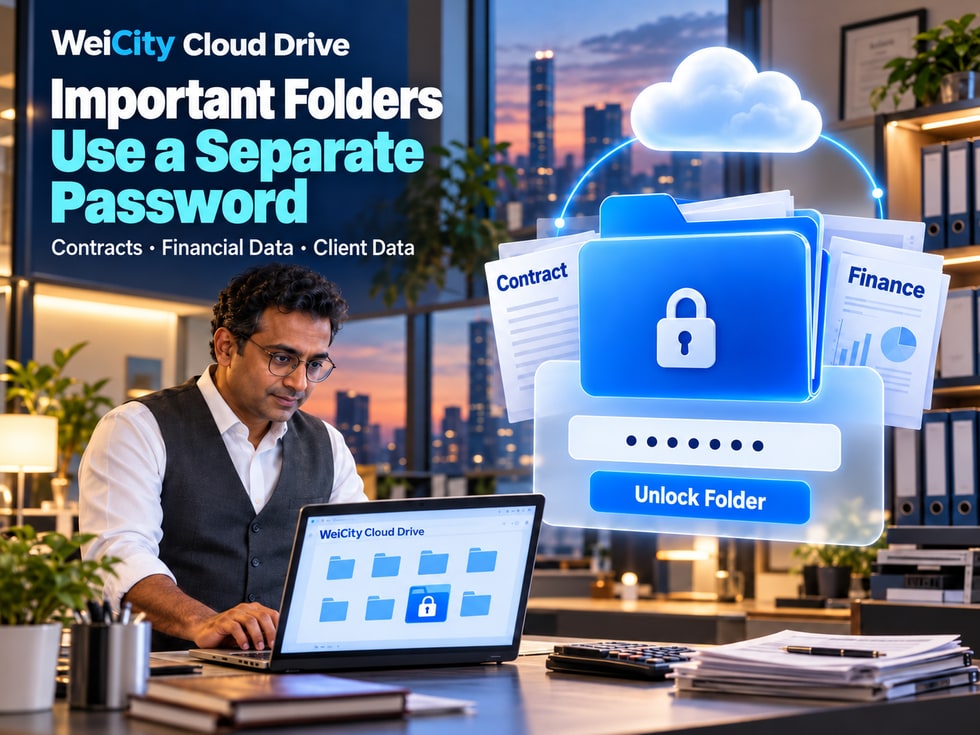
When running a business, merchants need to save and manage different types of files every day.
Some materials are used often, such as product photos, promotional materials, and product catalogs.
Other files, however, require more careful management.
📝 Customer contracts and cooperation agreements.
💰 Company financial statements and cost records.
👥 Customer information and business documents.
📐 Unpublished project proposals.
🎨 Unreleased design works and promotional materials.
After important materials are stored in Cloud Drive, can you add a separate password layer to them?
Yes. WeiCity Cloud Drive supports setting an independent access password for folders.
Even if you are already logged in to your Cloud Drive account, you still need to unlock a password-protected folder before opening it.
With folder password protection, merchants can arrange different access controls based on how important each material is.
The WeiCity Cloud Drive account password and folder password serve different access verification purposes.
Account login confirms which account is entering Cloud Drive.
After logging in, you can use the Cloud Drive features that the account is authorized to access.
Even if you are logged in to Cloud Drive, you still need to enter the corresponding password to open a password-protected folder.
For example:
📁 Company financial materials: set a separate password.
📁 Customer contract files: set a separate password.
📁 Internal project proposals: set a password as needed.
📁 Public promotional materials: no additional password is required.
After a folder is unlocked, the system may keep it unlocked for a certain period of time.
The exact duration of the unlocked status and the re-verification rules follow WeiCity's current actual system behavior.
📌 A folder password adds an extra access check on top of account login. It cannot replace account security settings or individual access permissions for team members.
Not every file needs password protection.
It is recommended to first classify files by importance, frequency of use, and intended audience.
For example:
📄 Customer service contracts.
🤝 Supplier cooperation agreements.
📑 Business cooperation documents.
✍️ Contracts not yet signed.
These documents may contain prices, cooperation terms, or mutual agreements, so they are suitable for storage in a protected directory.
For example:
💵 Company cost records.
📊 Financial statements.
🧾 Purchasing and payment records.
📄 Internal reconciliation materials.
Financial files usually do not need to be open to everyone and can be managed in a separate folder.
For example:
📋 Customer project requirements.
📄 Business documents provided by customers.
📁 Project communication materials.
📝 Customer-related records.
When personal information is involved, in addition to folder passwords, you should also check whether the collection, use, and sharing of the data comply with applicable privacy requirements.
For example:
🛠️ Project proposals not yet confirmed.
💰 Internal budgets.
📅 Project execution plans.
📄 Internal work records.
For example:
🎨 New product designs.
📸 Unpublished product photos.
📢 Unreleased event promotional images.
📝 New brand promotion plans.
📌 It is recommended to store frequently used public materials separately from files that need extra protection. This supports day-to-day work and makes important content easier to manage.
Folder password protection in WeiCity Cloud Drive does not only restrict opening folders.
According to the feature description, many access and management actions in a protected directory require password verification first.
You need to unlock a password-protected directory before opening it.
You need to complete unlocking before viewing the contents of files in the directory.
Downloading files from a protected directory requires passing password verification first.
You need to unlock a protected folder before uploading new materials to it.
Moving related materials requires meeting the unlock requirements of the corresponding directory.
Deleting materials in a protected directory also requires completing the relevant verification first.
📌 Folder password protection covers directory access and related file operations, helping reduce the chance that important materials are opened or handled carelessly.
Some files may reveal important information from their names alone, even if they are not opened.
For example:
📄 Customer A_Cooperation Contract.pdf
💰 Company Annual Cost Report.xlsx
📋 New Product Purchase Prices.pdf
📝 Unpublished Project Proposal.docx
Therefore, protecting important materials should consider not only file contents but also how file names are displayed.
According to the WeiCity Cloud Drive feature description, when a password-protected directory is locked, the names of related files are subject to access restrictions.
When locked, related files in a protected directory are not directly displayed by name.
Related content can be viewed only after unlocking.
Protected content does not directly display related file names while locked.
Even if a folder password is set, avoid adding unnecessary personal information or sensitive details to file names.
📌 Folder password protection applies not only to file contents but also to how related file names are displayed while locked.
Before setting a password, it is recommended to organize the materials you want to protect.
For example, you can create the following folders:
📁 Company Contracts
📁 Financial Materials
📁 Customer Files
📁 Internal Projects
📁 Unpublished Materials
Then, based on actual needs, set separate passwords for the important directories.
Create clear categories based on the purpose of the materials.
Confirm that files to be protected are already placed in the correct folders.
Open the action menu for the target folder and look for the option to set a password or a related protection option.
Follow the on-page prompts to enter and confirm your password.
Follow the system prompts to confirm that password protection has been enabled.
After the folder returns to a locked state, check whether a password is required to access it.
🔑 Do not use birthdays that are easy to guess.
📱 Avoid using phone numbers directly.
🔢 Do not use simple consecutive numbers.
📁 Do not write the password in the folder name.
🔐 Where possible, use a password that is hard to guess and is not reused on other services.
📌 The operation locations may vary across devices and page versions. Please refer to the current WeiCity Cloud Drive interface for the exact steps.
Yes, password-protected folders can be shared when needed.
According to the WeiCity Cloud Drive feature description, visitors accessing a protected shared directory must also complete password verification.
However, please note:
The folder password, sharing recipients, validity period, and download permissions are separate management settings.
Used to verify whether a person may enter a protected directory.
Determines who can access materials through the sharing entry point.
For example:
🔗 Anyone with the link.
👤 Specific authorized accounts.
Determines how long the sharing link can remain open.
Determines whether recipients are allowed to download the original files through the share.
Suppose you need to share a project file with a customer.
You can, as needed:
👤 Set access for specific accounts.
🔐 Arrange password verification for the protected directory.
⏳ Set an appropriate sharing validity period.
👀 Decide whether downloads are allowed based on the purpose of the material.
Knowing the folder password does not mean the sharing has been restricted to one specific person.
If you need to clearly control who receives access, you should also use appropriate specific-account access settings.
📌 The folder password adds directory verification, while sharing permissions manage who receives access. The two should be used together.
Material management for a merchant may need to change as the business changes.
For example:
🔑 The existing password needs to be replaced.
👥 Project participants have changed.
📁 The folder no longer needs extra password protection.
🤝 After a partnership ends, access needs to be rearranged.
WeiCity Cloud Drive supports changing or clearing a folder password that has already been set.
You must first enter the original password for verification, then set a new password.
This also requires verification with the original password.
After the password is changed, the existing unlocked status will become invalid.
Later access must be verified again according to the new settings.
If a customer still has authorized access to the related materials, notify them promptly of the new access arrangements.
Changing the folder password will not retrieve files that recipients have already downloaded.
If the goal is to stop a specific customer from continuing to access materials through a sharing link, you should also check and revoke the corresponding share.
📌 Changing the password adjusts directory access verification, while revoking a share stops a specific sharing entry point.
If you forget the folder password that has been set, can you no longer access the materials inside?
According to the WeiCity Cloud Drive feature description, you can complete identity verification through the verified email address on your account, and then reset or clear the folder password.
Therefore, before setting a folder password, it is recommended to confirm that your account email is working properly.
Confirm that the bound email address has been verified.
Follow the prompts on the forgot password or related recovery page.
Use the verification code received at your verified email address to complete identity verification.
Follow the page prompts to reset or clear the folder password.
📧 Make sure the email is managed by the account holder.
🔐 Set reliable login protection for your email.
🔢 Do not share email verification codes with others.
📱 Regularly review your email security settings.
📌 A folder password can be recovered through a verified email, so managing the security of that email is equally important.
After files are deleted, they may still need to be viewed or restored from the Recycle Bin.
According to the WeiCity Cloud Drive feature description, related files from a protected directory that have entered the Recycle Bin still require the corresponding password verification when being viewed or restored.
Related actions on a protected directory require unlocking first.
Viewing protected related materials requires completing verification.
Restoring protected content requires meeting the corresponding unlocking requirements.
The retention period for the WeiCity Cloud Drive Recycle Bin is 30 days.
Materials that need to be restored should be handled promptly within the retention period.
The folder password is responsible for access verification only.
It cannot extend the Recycle Bin retention time, nor can it replace backup and archiving arrangements for important files.
📌 For important materials, in addition to setting an access password, you should also manage file retention and backups.
This is an important distinction to understand when using the folder password feature.
The WeiCity Cloud Drive feature description refers to this function as folder encryption, but its access mechanism is a password-gate protection mode, not End-to-End Encryption.
Adds password verification for designated directories and related actions.
Even when you are logged in to your account, you must still unlock a protected directory first.
If you forget the password, you can complete the recovery process through the verified email on your account.
Do not understand this feature to mean that only the file owner holds a decryption key, or that file contents can never be accessed in any other situation.
🔐 Use a reliable account password.
📧 Protect the email address bound to your account.
📁 Set a separate password for important directories.
👤 Limit sharing recipients as needed.
⏳ Set a validity period for temporary shares.
👀 Set download permissions appropriately.
↩️ Revoke links promptly when sharing is no longer needed.
📌 The folder password is an additional access control measure. It should not be treated as end-to-end encryption or as complete data security.
📁 Have important files been placed in the correct folder?
🔐 Has a password been set for directories that need protection?
🔑 Is the password reliable enough and not easy to guess?
📝 Have you avoided exposing unnecessary sensitive information in file names?
📧 Has the email address bound to your account been verified?
👤 Have you limited external sharing to appropriate recipients?
⏳ Does the sharing validity period match actual needs?
👀 Are download permissions set correctly?
🔄 After changing the password, do you need to notify recipients who still have authorized access?
↩️ Have sharing links that are no longer needed been revoked?
🗑️ Have important files been backed up and scheduled for retention?
Completing these checks helps folder password protection work well with your day-to-day material management.
Merchants need to store different types of materials every day.
Product photos and promotional materials need to be easy to use, while contracts, financial documents, and customer information may require more careful management.
With the WeiCity Cloud Drive folder password protection feature, you can, as needed:
🔐 Set separate passwords for important folders.
📁 Organize contracts, financial records, and customer information by category.
👀 Add verification before accessing protected content.
🔎 Limit the display of related file names while they are locked.
👤 Work with sharing recipient and access permission management.
🔄 Change or clear folder passwords as needed.
📧 Complete password recovery through a verified email.
WeiCity Cloud Drive makes everyday files easy to access, while giving important directories an extra layer of access verification.
Start by organizing contracts, financial records, and customer information, set suitable passwords for folders that need extra protection, and combine this with account security, sharing permissions, and backup management to keep business materials better organized.
For specific password setup, unlocking status, recovery procedures, and related operations, please refer to the actual features of the current WeiCity platform.
👉 Open WeiCity Cloud Drive: https://wei.city/app/drive