

3 How to Allow Online Viewing Only and Block Downloads for a File? WeiCity Cloud Drive Feature Guide
Present plans, works and teaching materials online first, then decide whether to allow downloads of the original files according to actual needs.
When you need to show proposals, portfolios, or teaching materials to clients, you can use WeiCity Cloud Drive to set "View Online Only", restrict downloads of the original file, and manage access with passwords, expiry dates, and designated accounts. This article introduces suitable scenarios, setup approaches, and feature boundaries to help merchants arrange material presentations and formal deliveries.
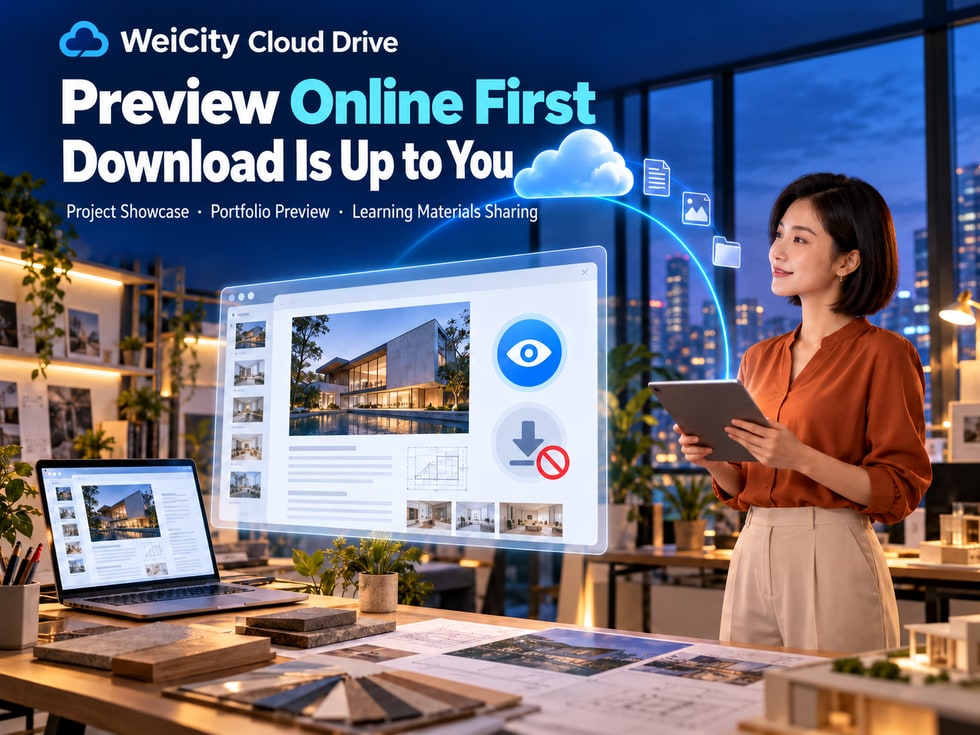
Want to share cooperation proposals, design work or course materials with clients, but not yet want them to download the original files?
In everyday business, showing files and formally delivering them often happen at different stages.
For example, a designer may need a client to review work first, a service merchant may need to discuss a cooperation plan first, and a training institution may want learners to read materials online first.
WeiCity Cloud Drive (WeiCity Cloud Drive) lets you turn off “Allow download” when sharing a file or folder, so recipients can view previewable content through the share page while downloads of original files through that share are restricted.
By setting download permissions appropriately, merchants can more clearly arrange material presentation, client review and formal delivery.
“Online Only” is a file sharing permission setting.
When the sharer turns off “Allow download,” recipients can still browse files that support online preview through the share page, but cannot download the original files through that share.
👀 Online viewing: Recipients can browse the content of files that support preview.
🚫 Download restriction: Turns off the permission to download original files through that share.
📁 Applies to folders: When Online Only is set on a folder, the restriction also covers subfolders and files within the shared scope.
↩️ Flexible adjustment: When formal delivery is needed, you can adjust permissions as agreed or create a new share.
File owners can still manage original files according to their own account permissions.
Note that Online Only cannot prevent screenshots, photos or re-recording of content, and cannot retrieve file copies that recipients have already downloaded.
Different merchants use files for different purposes, so whether to allow downloads should be decided based on business needs and mutual agreement.
Renovation, event planning and professional service merchants often need to show preliminary plans to clients first.
For example:
📄 Service proposals.
🏠 Renovation plans.
🎉 Event planning proposals.
💰 Project budget explanations.
Merchants can first provide an Online Only version so clients can understand the content and give feedback.
After the cooperation scope is confirmed, formal delivery files can be provided as agreed.
This helps clearly separate the discussion stage from the delivery stage.
Designers, photographers and content creators can first share works suitable for online preview.
For example:
🖼️ Poster designs.
📸 Photography works.
🎨 Brand visual concepts.
🎬 Video previews.
After the client confirms the work, the final products or source files can be provided according to the cooperation agreement.
Preview versions may appropriately include watermarks, project names and version dates to help both parties identify them.
If the original design files do not support online preview, you can first prepare PDF or image versions.
Training institutions and instructors can decide, based on the course schedule, which materials are for online reading only and which may be downloaded.
📚 In-class reference materials: consider Online Only.
📝 Post-class exercise files: if they need to be filled in or printed, downloads can be allowed.
🎬 Teaching videos: set access based on the course schedule.
📄 Course descriptions: share according to how learners actually use them.
Whether learners may save, print or forward materials should also be explained in advance.
General product catalogs are usually suitable for clients to save and forward easily.
However, for client-specific quotes, cooperation proposals or project files, you may consider combining Online Only with other sharing permissions.
📌 Not all files are suitable for disabling downloads. Before setting this, consider whether the client needs to read offline, print or discuss internally.
WeiCity Cloud Drive offers different preview options depending on the file format.
Supported Office files and PDFs can be displayed through a read-only online view.
In restricted viewing mode, the platform disables original-file download, printing, and text copying through the sharing page.
Recipients can preview supported image formats online.
The online-view-only mode does not provide a download link that can directly save the original file.
Supported video and audio files can be viewed or listened to through online playback.
Restricted recipients will not receive a direct download link to the original file.
Not all files support online preview.
For example, compressed files or some professional software files may not display properly in online-view-only mode.
If you need to show the content of these files, consider preparing a PDF, image, or another previewable version first.
📌 Actual preview results and available features depend on the file format and the current prompts on the WeiCity Cloud Drive page.
Yes.
When a shared folder is set to online view only, the restriction applies to all subfolders and files within the shared scope.
For example, a client project folder contains:
📄 Cooperation Proposal.pdf
🖼️ Design Preview.jpg
📝 Service Description.docx
📁 Project Reference Images
Merchants can share an entire folder as needed and turn off "Allow Download."
Under this restricted sharing, recipients cannot bypass the restriction by downloading the entire shared folder as a ZIP file.
However, restricting downloads does not mean restricting access to the content.
Before sharing a folder, you should still check whether it contains materials that are not suitable for the recipient.
📂 Check subfolders: Make sure files from other clients or projects are not mixed in.
📄 Check file versions: Confirm that the materials shown are the ones needed for this purpose.
🖼️ Check the preview: Make sure supported files open properly.
👤 Check the recipients: Confirm that the sharing scope matches the actual purpose.
📌 Sharing an entire folder is convenient, but you must first review everything inside it.
The steps may vary by device and platform version. Refer to the current Cloud Drive interface.
You can follow these steps.
① 📁 Select a file or folder
Locate the materials you want to show the client.
② 🔗 Open sharing settings
Go to the sharing options for the file or folder.
③ 👤 Choose who can access it
Depending on your needs, select access by anyone with the link, or allow only specified accounts.
④ 🚫 Turn off "Allow Download"
Set supported files to online view only.
⑤ 🔑 Set an access password if needed
If the materials require additional verification, you can add an access password.
⑥ ⏳ Set the sharing validity period
Choose an access period that fits your cooperation discussions or course schedule.
⑦ 👀 Check download and edit permissions
If the client only needs to view the materials, avoid opening unnecessary editing permissions.
⑧ 📨 Send the share link
Tell recipients how they can view the materials, how long access lasts, and what the next delivery arrangements are.
For example, you could notify the client like this:
"Hello, this is the preview file for our proposed cooperation plan.
You can view the content online using the link below.
Original file downloads are not available with this share for now. Once the plan is confirmed, we will provide the official deliverables according to our cooperation agreement."
Online view only mainly determines:
Whether recipients can download the original file through this share.
If you also need to manage who can access the file and for how long, you can use it together with other permissions.
👤 Specified accounts: Only authorized accounts can log in and access the file.
🔑 Access password: Recipients must enter a password to open the materials.
⏳ Sharing validity period: Limits how long the link is open.
↩️ Revoke sharing: When the materials are no longer in use or the cooperation phase ends, stop access through the link.
Suppose a designer needs to show the first version of a design proposal to a client.
You might consider the following settings:
👤 Access recipients: Specified client account.
🔑 Access password: Set as needed.
⏳ Validity period: 7 days.
🚫 Download permission: Online view only.
After the client confirms the design, provide the official deliverable with download permission according to the cooperation agreement.
The 7 days here is only an example. The actual sharing period should be decided based on the communication needs of both parties.
📌 Access recipients, passwords, validity periods, and download permissions can be used together so file sharing better fits your actual business process.
No.
Turning off "Allow Download" limits recipients from obtaining the original file through the sharing feature, but it cannot guarantee that the content will never be saved or spread.
For example:
📷 Recipients may still take screenshots or photos.
📝 Recipients may still manually write down the text.
💬 Recipients may still pass on the content to others.
💾 Copies downloaded before are not removed by changing permissions.
Therefore, for important business materials, consider taking other management measures as needed.
🎨 Add an appropriate watermark: Indicate the display purpose or project name.
📅 Note the version date: Makes it easier to tell drafts from final versions.
👤 Limit recipients: Avoid opening materials to unrelated people.
⏳ Set a validity period: Reduce unnecessary long-term access.
📄 Control the scope of display: Provide only what is needed for the current discussion.
🤝 Clarify the cooperation terms: Explain copyright, usage scope, and conditions for formal delivery.
📌 Online view only is a sharing permission control method. It is not end-to-end encryption and does not replace copyright and delivery agreements.
Before sharing important files, you can use the checklist below.
📄 Is this the correct version to show for this purpose?
👀 Does the file format support online preview?
📱 Can the recipient view it properly on the device they are using?
📥 Does the client need to download, print, or use the files offline?
🚫 Have you turned off "Allow Download"?
📝 Have you avoided opening unnecessary editing permissions?
📁 Does the shared folder contain other materials that should not be shown?
👤 Are the specified-account or public-link settings correct?
🔑 Is an access password needed?
⏳ Does the sharing validity period match actual needs?
🤝 Have you explained the timing and method for formal delivery?
Completing these checks before sending can help reduce problems such as clients being unable to view files, incorrect sharing scope, or unclear delivery arrangements.
Clients often understand a proposal, confirm the work, and receive formal files at different stages.
For materials that need to be discussed before they are confirmed, WeiCity Cloud Drive's online view only feature can help merchants arrange a clearer way to share files.
👀 Presentation stage: Let clients understand the content online.
💬 Discussion stage: Based on feedback, confirm what needs to be revised.
📝 Confirmation stage: Review the final version and delivery scope.
📥 Delivery stage: Provide downloadable files according to the agreement.
🔐 Management stage: Adjust permissions or revoke sharing as needed.
WeiCity Cloud Drive lets clients review the materials they need to understand first, then decide when to enable downloads based on the actual cooperation arrangement.
Starting with your next cooperation proposal, design work, or course materials, first confirm how recipients need to use the files, then choose the appropriate sharing permissions.
Specific file formats, online preview results, download restrictions, and permission settings depend on the features WeiCity currently offers on the platform.
👉 Open WeiCity Cloud Drive: https://wei.city/app/drive