

12 How to Recover Accidentally Deleted Cloud Drive Files? 30-Day Recycle Bin Guide | WeiCity Cloud Drive
If you deleted a quotation, product photo or work material by mistake, check the Recycle Bin first and recover the files you need within the retention period.
What should you do if you accidentally delete Cloud Drive files? WeiCity Cloud Drive provides a 30-day Recycle Bin retention mechanism, giving accidentally deleted files a chance to be restored within the retention period. This article introduces the steps to take after accidental deletion, what to check after recovery, and how merchants can reduce accidental deletion and repeated work when organizing quotations, product images and customer materials.
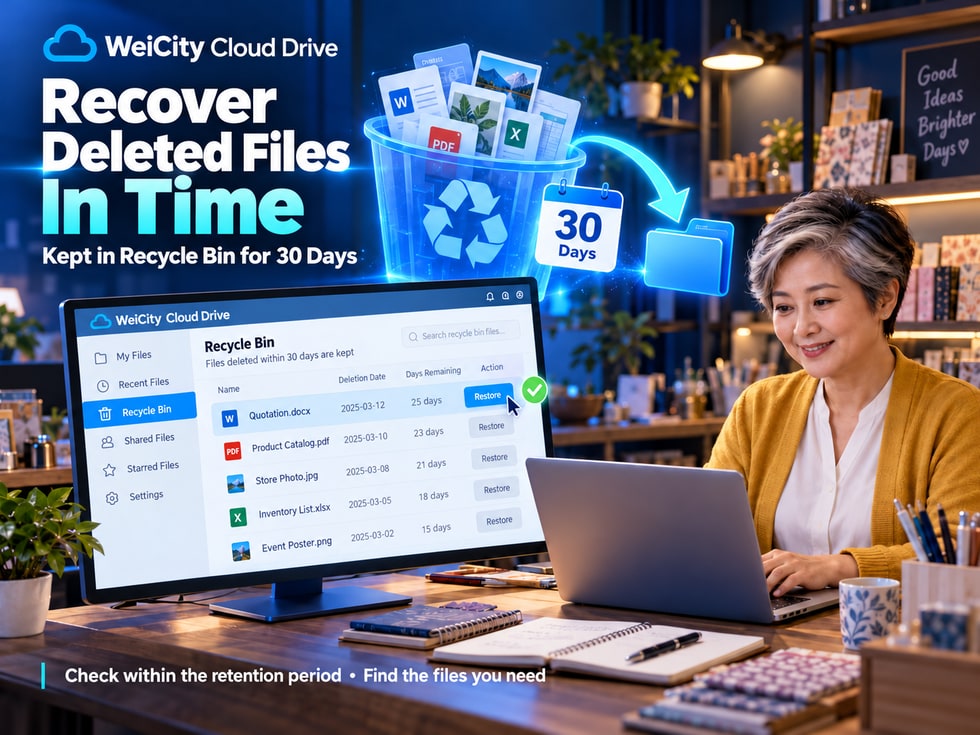
What should you do if you accidentally delete an important file while organizing your Cloud Drive?
For example:
📄 Accidentally deleted a quotation that is still in use.
🖼️ Accidentally deleted a product photo.
🎨 Accidentally deleted a client's confirmed design draft while organizing design files.
📚 Deleted a textbook that was still needed while cleaning up course materials.
📁 Selected the wrong folder while batch organizing project files.
These situations can all happen in everyday work.
If a file in WeiCity Cloud Drive was accidentally deleted, where should you look for it first?
You can first check the "Recycle Bin" in Cloud Drive.
WeiCity Cloud Drive provides a 30-day Recycle Bin retention mechanism, so deleted files have a chance to be restored within the retention period.
♻️ After deleting a file, you can first look for it in the Recycle Bin.
📅 The Recycle Bin has a 30-day retention period.
📁 When restoration conditions are met, accidentally deleted files can be restored.
🔐 Password-protected materials may still need to be unlocked.
🔎 After restoring, you can recheck the file content and storage location.
The WeiCity Cloud Drive Recycle Bin adds a safety net to everyday file management, reducing the impact of accidentally deleting important materials.
When organizing files day to day, you may sometimes delete materials you still need by mistake.
Without a Recycle Bin, accidentally deleted files could cause unnecessary trouble.
WeiCity Cloud Drive provides a 30-day Recycle Bin retention mechanism, giving users a chance to recover deleted files within the retention period.
A customer is waiting for a quotation, but while organizing files you accidentally deleted the related materials.
You can first check the Recycle Bin to see whether it can still be restored.
While preparing to publish products, you find that the original product photos are no longer in the folder.
If the photos were deleted, you can first check the Recycle Bin.
While organizing old projects, a designer may accidentally delete design drafts that were already confirmed.
When restoration conditions are met, they can be recovered from the Recycle Bin.
When an education center or training institution organizes teaching materials, it may accidentally delete files that are still in use.
The Recycle Bin can provide time to notice the problem and take action.
Project files usually include multiple documents, photos and work records.
If you selected the wrong files while organizing, you can first check whether the Recycle Bin still keeps the related content.
Please pay special attention:
30 days is the Recycle Bin's retention period, not a promise of permanent storage.
If a file has exceeded the retention period or has already been permanently deleted, recovery cannot be guaranteed.
📌 If you discover an accidental deletion, check the Recycle Bin as soon as possible rather than waiting until the retention period is about to end.
Not necessarily.
Sometimes a file does not appear in its original folder, but that does not mean it has been deleted.
It may simply have been moved or renamed, or you may be logged in to a different account.
Therefore, before going to the Recycle Bin, you can first check the following.
First confirm that you are using the WeiCity account where the file was originally stored.
If you are using a different account, you may not be able to see the original materials.
Try searching with the file name or keywords you remember.
For example:
📄 Quotation.
📸 Product photos.
📁 Project name.
📚 Course name.
If you recently organized files, the materials may have been moved to another location.
You can check folders you have recently used or organized.
If the file was originally stored in a password-protected folder, you may need to unlock it first before you can view the related content.
If the file was shared with you by another user, you can check the shared materials entry.
If the other party cancels the sharing, the file may also no longer appear.
For example:
Client A shared a file with you.
Later, Client A revoked the sharing permission.
At this point, you may no longer be able to access the file.
However, this does not mean the file went into your own Recycle Bin.
Contact the original file owner to confirm.
📌 If a file cannot be found, first check the account, search results, folders and sharing status before deciding whether it was really deleted.
If you have confirmed that a file was deleted, you can try to restore it through the WeiCity Cloud Drive Recycle Bin.
Button locations may differ between devices and page versions. Always follow the current screen.
Log in with the account where the file was originally stored.
Go to the Cloud Drive file management page.
Find the Recycle Bin entry in Cloud Drive.
Based on the file name and the information provided on the page, confirm the materials you need to restore.
For example:
📄 Quotation.
🖼️ Product images.
📚 Course materials.
📁 Project files.
After confirming the file is correct, select the corresponding materials.
Use the restore function provided on the page.
Follow the prompts to complete the operation.
Return to Cloud Drive and confirm whether the file has been restored.
The actual storage location after restoring should be based on the page prompts and the restore result.
If the Recycle Bin contains several files with similar names, check the versions first.
For example:
Quotation_2026-10-01.pdf
Quotation_2026-10-16.pdf
Avoid mistaking an older version for the file you currently need.
📌 Before restoring a file, confirm the name and version; after restoring, check the actual content.
After a file is restored from the Recycle Bin, not all related settings are necessarily returned to their original state.
It is recommended to do one more check.
Confirm that the correct file was restored.
Especially when the same project has multiple versions, check carefully.
Confirm which folder the file was restored to.
If the location does not fit your current organization method, you can reclassify it as needed.
For files that support online preview, you can try opening them to review.
For example:
🖼️ Whether images display properly.
📄 Whether documents are complete.
📊 Whether spreadsheet content is correct.
🎬 Whether videos can be previewed normally.
If the file type does not support online preview, you can download it and check as needed.
If the file was previously shared with a customer, recheck the following after restoring:
👤 Sharing recipients.
🔑 Access password.
⏳ Sharing validity period.
⬇️ Download permissions.
🔗 Whether the original link is still valid.
A successful file restore does not mean the original sharing link and permissions will automatically be restored.
If you plan to deliver the file to the customer again, test the access result first.
📌 After restoring a file, check its content, location and sharing status to confirm the materials can continue to be used normally.
WeiCity Cloud Drive supports folder password protection.
If accidentally deleted materials were protected by a folder password, you may also need to complete password verification before accessing or handling the related content in the Recycle Bin.
If the page asks for a password, enter the correct folder password to complete verification.
After completing any necessary verification, find and restore the file following the page prompts.
The two features serve different purposes.
🔑 Folder password protection:
Used to control access to protected materials.
♻️ Recycle Bin restore:
Used to recover files after they have been deleted.
The Recycle Bin is not a way to bypass folder passwords.
If the page requires verification, follow the actual permissions and prompts.
📌 Password protection handles access control and the Recycle Bin handles recovery from accidental deletion. The two can be used together, but cannot replace each other.
For operating merchants, different files may vary in importance.
After discovering an accidental deletion, it is recommended to prioritize materials you are currently using, need to deliver soon, or would be difficult to obtain again.
For example:
📄 Quotations currently being confirmed.
💵 Latest product price list.
📝 Partnership proposal quotations.
If a customer is waiting for materials, confirm as soon as possible whether they can be restored.
For example:
🖼️ Original product photography files.
📷 Product photos that have not been backed up yet.
🎨 Promotional design materials.
Original photos may not be easy to reshoot, so they are worth checking first.
For example:
🖥️ Design source files.
📝 Client-approved drafts.
📦 Final delivered work.
These materials may relate to work that has already been completed.
For example:
🎓 Textbooks for next week's course.
📝 Student exercises.
📄 Teaching notes.
🎬 Course videos.
For example:
📊 Project schedule.
📄 Work reports.
📁 Client materials.
📝 Project records.
A merchant plans to hold a promotion next week.
While organizing old promotional images, they accidentally deleted the event poster.
They can first go to the WeiCity Cloud Drive recycle bin and check whether the poster is still within the retention period.
If it can be restored, they can then move it into a clearly named event folder.
For example:
📁 October 2026 Promotion
📂 Promotional Posters
📂 Product Images
📂 Event Materials
📌 After an accidental deletion, prioritizing the recovery of important files in active use can reduce the need to recreate them and avoid work delays.
The recycle bin is mainly used to recover files after they have been deleted.
Not every file problem can be solved through the recycle bin.
For example:
📄 A quoted amount was entered incorrectly.
📊 Excel spreadsheet content was overwritten.
📝 Important paragraphs were deleted from a Word document.
These situations do not necessarily count as file deletion.
WeiCity Cloud Drive does not currently provide a complete file version history feature.
Therefore, the recycle bin should not be treated as a complete version recovery tool.
If a client cannot open a file, first check:
⏳ Whether the link has expired.
👤 Whether the access recipient is correct.
↩️ Whether the share has been revoked.
📁 Whether the original file still exists.
If the file is saved in another WeiCity account, you need to log in to the correct account first to search for it.
If the file was only moved to another folder, there is no need to restore it through the recycle bin.
You can first use the search function to look for it.
If a file has passed the recycle bin retention period, recovery cannot be guaranteed.
If a file has been permanently deleted, or there is no related record in the recycle bin, recovery cannot be guaranteed based on the 30-day retention mechanism alone.
📌 The recycle bin is suitable for handling some accidental deletions, but it cannot replace version history, file backups, or share permission management.
Although the recycle bin provides a chance to recover files, a better approach is to reduce accidental deletions in the first place.
Start with file categorization, naming, and backups.
For example:
📁 Customer A
📁 Client B
📁 Product Materials
📁 Course Textbooks
📁 Promotional Materials
This helps prevent materials from different business activities from being mixed together.
Consider including the following in file names:
👤 Client name.
📄 File purpose.
📅 Date.
🏷️ Version number.
For example:
Client A_Quotation_2026-10-16.pdf
Product B_Promotional Image_2026-10.jpg
Course A_Textbook_V2.pdf
Especially during bulk deletion, carefully check the selected files.
Do not delete large amounts of unconfirmed materials at once.
You can organize first, then decide which files are no longer needed.
For materials whose need to be kept is uncertain for now, you can first move them to a To Be Sorted folder.
For example:
📁 Files to Be Sorted
📁 Historical Materials
📁 Retired Promotional Materials
This helps avoid deleting things too early.
For important files that are difficult to obtain again, it is recommended to keep separate backups.
For example:
📸 Original product photography files.
🎨 Design source files.
📄 Formal contracts.
📊 Important business records.
If a file is past the retention period or has been permanently deleted, the recycle bin may no longer offer a recovery opportunity.
📌 Clear categorization, careful deletion, and backing up important files are more reliable than relying entirely on the recycle bin.
Not necessarily.
You need to confirm that the file is still within the recycle bin retention period and has not been permanently deleted.
It is recommended to open the recycle bin and check the actual status.
After the retention period has passed, recovery of the file cannot be guaranteed.
Therefore, when an accidental deletion is discovered, it should be handled as soon as possible.
The recycle bin is mainly used to restore deleted files.
It cannot replace a complete file version history.
For important documents, it is recommended to keep a copy of what you need before editing.
If the original file belongs to another user, the other user may have deleted it or changed the sharing permissions.
Contact the original file owner to confirm.
This cannot be guaranteed directly.
It is recommended to first check the original link, sharing permissions, and file status.
After confirming that the recipient can access it normally, then notify the client to use it.
You can first check:
👤 Whether you are logged in to the correct account.
🔎 Whether the file name is correct.
📂 Whether the file was moved to another location.
📅 Whether the file is past the retention period.
🤝 Whether it is a file shared by another user.
You can contact the WeiCity support email:
We recommend providing:
📄 File name.
📁 Original storage location.
📅 Approximate deletion date.
👤 Account information used.
⚠️ Relevant prompts shown on the page.
Technical staff can help investigate based on the actual situation, but whether recovery is possible still depends on the file's status.
✅ Did you select the correct files?
✅ Does it include materials that are still needed?
✅ Are other clients or projects using it?
✅ Do you need to keep a backup first?
✅ Are you logged in to the correct account?
✅ Have you tried searching for the file name?
✅ Have you checked other folders?
✅ Have you checked shared materials?
✅ Is the file still within the retention period?
✅ Did you select the correct version?
✅ Did you complete the restoration by following the prompts on the page?
✅ Does the file reappear?
✅ Is the file content correct?
✅ Is the file location appropriate?
✅ Do you need to reorganize the categories?
✅ Is the original share link still valid?
✅ Are the access permissions correct?
✅ Can the client open the file normally?
📌 Checking promptly after an accidental deletion and verifying again after restoration can reduce the impact of file loss on daily work.
For merchants, quotations, product photos, design files, and client materials are important files that are frequently used in daily operations.
When organizing these materials, accidental deletions may sometimes happen.
WeiCity Cloud Drive provides a 30-day recycle bin retention mechanism, giving users a chance to recover accidentally deleted files when eligible.
♻️ After an accidental deletion, you can first check the recycle bin.
📅 The 30-day retention period provides time to remedy mistakes once they are discovered.
📁 After restoring a file, you can review its contents and storage location again.
🔐 Password-protected files may still require verification.
🔗 Before sharing again, check the link and access permissions.
💾 For important files, it is still recommended to keep a separate backup.
The WeiCity Cloud Drive recycle bin can help with some accidental deletions, while clear file categories, naming, and backup arrangements can make everyday file management more reliable.
Whether it is product photos, customer quotes, course materials, or project results, it is recommended to set up a file organization method that suits you.
If you discover an accidental deletion, check the recycle bin as soon as possible. After restoring, confirm the file content and sharing status.
Specific recycle bin retention, restore operations, and file access conditions are subject to WeiCity's current platform functions and terms of service.
👉 Open WeiCity Cloud Drive: https://wei.city/app/drive