

10 How to Edit Word, Excel and PPT Online? WeiCity Cloud Drive User Guide
Open, edit and save work files in your browser, reducing the need to download and re-upload, and authorize designated accounts to edit together.
WeiCity Cloud Drive supports editing supported Word, Excel and PowerPoint files in the browser and saving changes back to Cloud Drive. This article introduces the uses of online editing, basic operations and collaboration permissions, helping merchants handle quotation descriptions, work spreadsheets and presentation materials while reducing repeated downloads and uploads.
When running a business, you often need to revise various work files.
For example:
📝 A quote description needs one sentence changed.
📊 A product spreadsheet needs several details updated.
📽️ A presentation needs its date revised.
📄 A service description needs additional content.
📅 A project schedule needs updated work arrangements.
If every change requires downloading the file, opening desktop software, completing the edit, and uploading it again to the cloud drive, this not only adds steps but may also leave multiple hard-to-identify file copies.
So, can Office files already saved in WeiCity Cloud Drive be edited directly online?
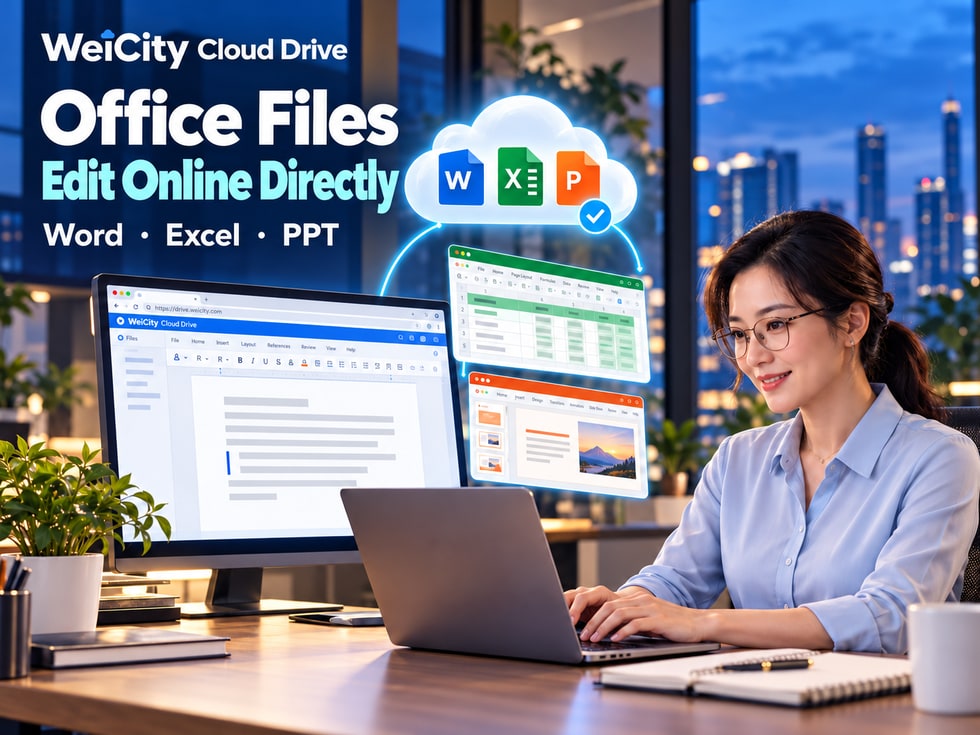
Yes. WeiCity Cloud Drive supports opening, editing, and saving supported Word, Excel, and PowerPoint files through a browser.
☁️ Files are stored in the cloud drive.
📝 Edit online through a browser.
📊 Revise spreadsheets and everyday work materials.
📽️ Update presentation content.
👥 Authorize designated accounts to take part in editing as needed.
WeiCity Cloud Drive makes it easier to revise commonly used Office files and reduces repeated download and upload steps.
WeiCity Cloud Drive provides online editing for Word, Excel, and PowerPoint.
For file formats that support online editing, you can change the content through a browser and save it back to the corresponding file in the cloud drive.
Suitable for handling:
📄 Service descriptions.
📝 Work drafts.
📋 Project materials.
🤝 Collaboration documents.
📚 Teaching materials.
For example, when service content changes, you can open the corresponding Word document and revise it.
Suitable for handling:
🛍️ Product information sheets.
📦 Inventory records.
📅 Work schedules.
🛠️ Project progress.
📋 File delivery checklists.
For example, when product specifications change, you can edit the supported Excel spreadsheet directly online.
Suitable for handling:
🏪 Product introductions.
🎓 Course presentations.
🛠️ Cooperation proposals.
🎤 Event presentations.
📢 Business promotional materials.
For example, when course dates or event schedules change, you can open the corresponding presentation and revise it.
The following older formats are read-only online:
📄 .doc
📊 .xls
📽️ .ppt
These files may be previewed depending on platform support, but they cannot be edited online in the same way as newer file formats.
📌 Being able to open a file online does not necessarily mean it can be edited online. Whether editing is supported should be determined by the file format and the prompts on the current WeiCity page.
In the past, changing a file in the cloud drive might have required several steps.
⬇️ Download the file from the cloud drive.
🖥️ Open it with desktop software.
📝 Edit the content.
💾 Save a new file.
⬆️ Upload it back to the cloud drive.
📁 Check the old and new file versions.
If you only need to change a sentence or a few numbers, this process can feel tedious.
With WeiCity Cloud Drive online editing, some repeated steps can be reduced.
When a file needs changes, you can first check whether online editing is supported.
For supported content, you can make adjustments in the online editor.
After finishing your edits, confirm that the file has been saved successfully.
Avoid leaving multiple downloaded copies every time you make a change.
For example:
Quotation_Latest.xlsx
Quotation_Revised.xlsx
Quotation_Final.xlsx
Quotation_Final_Revised.xlsx
These names can easily cause version confusion.
For work files that need frequent updates, you can make changes through a browser.
Online editing still requires a suitable network connection.
After finishing your work, check the save status to confirm the changes were saved successfully before closing the page or sharing the file.
📌 The main value of online editing is reducing the repeated steps needed for small changes to commonly used files.
Word documents are a file type frequently used in merchants' day-to-day work.
For example:
🛠️ Service descriptions.
🎓 Course introductions.
📄 Partnership materials.
📋 Work requirements.
📚 User Guides.
When content needs adjusting, you can open a Word file that supports online editing and make changes.
Suitable for updating:
📄 Scope of Services.
💰 Fee information.
📅 Service schedule.
📝 Items for the client to prepare.
For example, if a service adds a new item, you can update the corresponding description.
Suitable for updating:
📚 Course content.
📅 Class dates.
📝 Textbook information.
👩🏫 Teaching arrangements.
Suitable for editing:
📄 Project discussion drafts.
🛠️ Work requirements.
📅 Execution schedule.
📝 Partnership notes.
For contracts that have been signed or formally confirmed, do not overwrite the original version directly; keep the corresponding records as agreed by both parties.
You can add:
📝 Operation steps.
❓ Frequently asked questions.
📸 Image notes.
📄 Usage notes.
📝 Whether the headings are correct.
📄 Whether the paragraphs are complete.
📊 Spreadsheets display correctly.
🖼️ Whether the images are still in the correct positions.
📑 Whether the page breaks meet your needs.
📌 For Word files to be sent to clients or used for printing, check the overall layout again after editing.
Excel spreadsheets are often used to record business information that needs ongoing updates.
For example:
🛍️ Product lists.
📦 Purchase records.
📅 Work schedules.
🛠️ Project progress.
📋 Delivery checklist.
Through WeiCity Cloud Drive, you can edit supported Excel files online and update their content according to actual work progress.
You can update:
📦 Product models.
📐 Product specifications.
🎨 Colors and styles.
📝 Product descriptions.
You can adjust:
📆 Work dates.
👤 Person in charge.
📝 Work content.
✅ Completion status.
Please record the following:
📋 Pending items.
🔄 Work in progress.
✅ Completed projects.
📅 Estimated completion time.
You can verify:
📄 File name.
📁 Number of files.
🏷️ File versions.
👤 Recipients.
📅 Delivery date.
Some Excel files may contain:
🧮 Complex formulas.
📊 Special charts.
🔄 External data connections.
⚙️ Macros and automation features.
Do not assume that the online editor supports exactly the same features as desktop Excel.
For spreadsheets containing important calculation results, check the formulas, values, and displayed results again after editing.
📌 Excel online editing is suitable for maintaining everyday work materials. For complex calculations or special features, first confirm the editor's actual level of support.
PowerPoint is often used for product presentations, teaching, and business partnerships.
For example:
🏪 Product introductions.
🎓 Course presentations.
🛠️ Project proposals.
🎤 Event presentations.
📢 Corporate promotion.
These files may need to be adjusted for different clients or events.
Through WeiCity Cloud Drive, you can edit supported PowerPoint files online.
You can adjust according to this client's needs:
🛍️ Product content.
📸 Product photos.
📐 Specification details.
💰 Related price information.
You can update:
📚 Course title.
📅 Class dates.
📝 Teaching content.
📸 Related images.
You can revise:
📄 Project descriptions.
📅 Implementation time.
💰 Budget content.
📝 Discussion items.
You can adjust:
📅 Event Schedule.
👤 Speaker introduction.
📄 Event schedule.
🖼️ Promotional content.
PowerPoint files may contain complex layouts and effects.
Recommended checks:
🔤 Whether the fonts display correctly.
🖼️ Whether the images are in the correct positions.
📊 Whether the charts are complete.
🎬 Whether the animations meet your needs.
📐 Whether the page layout is normal.
📌 After editing a presentation online, check the overall effect again before formal presentation to avoid changes in fonts or layout.
Some work files require multiple people to participate.
For example:
📝 Clients need to add project requirements.
📊 Partners need to update work sheets.
📄 Team members need to revise service descriptions.
📋 Project managers need to fill in progress.
When sharing with designated accounts, WeiCity Cloud Drive allows editing permissions to be granted for supported Office files.
Authorized recipients can take part in online editing according to their actual permissions.
Confirm that the other party is a person who needs to take part in editing this file.
Grant editing only when the file actually needs to be modified.
For example:
📄 Please add the content for Part 3.
📊 Please update this week's project progress.
📅 Please confirm and revise the event date.
📝 Please fill in the work items you are responsible for.
After completing your changes, check whether the file has been saved successfully.
Confirm that the changes meet the requirements of this work.
If a recipient only needs to read the material, editing permission is not necessarily required.
For formally confirmed files, manage editing permissions with even greater care.
📌 When multiple people take part in editing, clarify who may edit, which content they need to change, and who is responsible for the final check.
When sharing Office files, different recipients may have different needs.
Some clients only need to read.
Some clients need to download and save.
Some partners need to take part in revisions.
Therefore, consider the relevant permissions separately before sharing.
Suitable for:
📄 Product introductions.
📝 Preliminary partnership proposals.
📋 Interim reports.
📚 Reference materials.
If you do not want to allow downloads of the original file, you can choose online viewing only, depending on what the platform supports.
Suitable for:
📦 Final delivered work.
📄 Materials that need to be saved offline.
🖨️ Files that need to be printed.
📚 Textbooks agreed to be downloadable.
Download permissions should be granted according to the arrangement agreed by both parties.
Suitable for:
📊 Shared work sheets maintained together.
📄 Documents that clients need to supplement.
📋 Project collaboration files.
Grant the corresponding editing permissions only when authorized designated accounts need to take part in revisions.
When a client only needs to read, do not also grant editing permission.
Needing to download does not necessarily mean needing editing permission.
📌 Arranging viewing, downloading, and editing permissions according to actual use can reduce unnecessary risks of file changes.
WeiCity Cloud Drive supports opening and editing eligible Office files through a browser.
Access points may differ across devices and page versions. The actual interface shall prevail.
Go to WeiCity Cloud Drive and open the corresponding folder.
Select the Word, Excel, or PowerPoint file you want to edit.
Check whether the file is in a format that supports online editing.
If it is an older Office file, it may only support online viewing.
Enter the editor through the online editing option provided on the page.
Make adjustments as needed:
📝 Word text and paragraphs.
📊 Excel spreadsheet data.
📽️ PowerPoint presentation content.
After making your changes, wait and check the save status shown on the page.
Do not close the page before you have confirmed that the changes are saved.
Confirm:
📄 The changes have taken effect.
📊 The data is correct.
🖼️ The images display properly.
📐 The layout meets your needs.
After confirming the file content is correct, then share it with customers or partners.
You can first check:
📄 Check whether the file format supports editing.
👤 Check whether the current account has editing permission.
🔐 Check whether the folder needs to be unlocked.
📌 After finishing online editing, the most important steps are to confirm the file has been saved and to check the actual content.
This is an important point to note when using Office online editing.
WeiCity Cloud Drive does not currently provide a complete file version history feature.
For this reason, do not assume that every change can be restored at any time just because it was saved online.
For important files, it is recommended to keep the versions you need before making changes.
For example:
Partnership_Proposal_Client_Confirmed_Version.pdf
Partnership_Proposal_Working_Revision.docx
Avoid overwriting formal content that has already been confirmed.
For example:
Project_Budget_2026-10-01.xlsx
Project_Budget_2026-10-16.xlsx
Before making major adjustments, you can first keep a copy of the files you need.
It is recommended to distinguish between:
📁 Formal presentation versions.
📁 Daily working versions.
You can include:
📅 Date.
📝 Purpose of the file.
🔢 Version number.
👤 Project name.
If important content is overwritten, it may not be possible to recover it through a complete version history.
Therefore, for formal deliverables, important calculations, or confirmed files, arrange version retention in advance.
📌 Online editing makes changes more convenient, but important files still need proper version management and backups.
When using online editing, you may occasionally find that you cannot make changes or that the file displays abnormally.
You can first check the following items.
Is it a format that supports online editing?
Is it still an older .doc, .xls, or .ppt file?
Does the current account have editing permission?
If the file was shared by someone else, has that person only granted view permission?
Is the network working properly?
Is the page still loading?
If the file is in a password-protected directory, has it been unlocked?
Does it contain complex features that the online editor does not yet support?
For example:
🧮 Special formulas.
⚙️ Macros.
🔄 External data connections.
🎬 Complex animations.
Is an error message appearing?
Do you need to reopen the file?
You can provide the technical staff with:
📄 File format.
🖥️ The device and browser you are using.
⚠️ The error message shown on the page.
📝 The steps that led to the problem.
If you need to take a screenshot, avoid showing unnecessary customer information or internal company information.
📌 If a file cannot be edited, first check the format, permissions, and page messages. This is usually more effective than repeatedly clicking the same entry point.
✅ Has the file been saved successfully?
✅ Does the edited content still appear?
✅ Is the file name correct?
✅ Do you need to keep the version from before the changes?
✅ Have you avoided overwriting confirmed formal files?
✅ Are the headings and paragraphs complete?
✅ Do the tables and images display properly?
✅ Does the page break meet your needs?
✅ Is the data correct?
✅ Do the important formulas work properly?
✅ Have the calculation results been checked?
✅ Do the fonts display properly?
✅ Are the images and charts complete?
✅ Does the page layout meet presentation needs?
✅ Are the accounts participating in editing correct?
✅ Should editing permissions that are no longer needed be adjusted?
✅ Is the version sent to the customer the confirmed version for this purpose?
✅ Do the download and viewing permissions match the purpose?
📌 After finishing online editing, checking the save status, content, and sharing permissions can help reduce problems later.
From product introductions and quotation details to project schedules, the files merchants use every day often need to be updated.
If you have to download, save, and upload again for every change, it adds steps and can easily create many copies that are hard to tell apart.
With the Office online editing feature in WeiCity Cloud Drive, merchants can:
📝 Edit supported Word documents online.
📊 Update Excel product information and worksheets.
📽️ Adjust PowerPoint presentations.
☁️ Save edited files back to Cloud Drive.
📁 Reduce repeated downloads and uploads.
👥 Invite specific accounts to take part in editing as needed.
🔐 Manage viewing, downloading, and editing permissions according to actual use.
🏷️ Use clear file names to manage different versions.
WeiCity Cloud Drive keeps the saving, editing, and sharing of commonly used Office files in one place, helping merchants handle everyday work more conveniently.
You can start with a product spreadsheet, service description, or project document that you update often, and get familiar with how online editing works in WeiCity Cloud Drive.
For important files, remember to keep the versions you need before making changes, and confirm the save status when you are done.
The supported file formats, online editing features, and permission settings are subject to what WeiCity currently makes available on the platform.
👉 Open WeiCity Cloud Drive: https://wei.city/app/drive