

11 What to Do If a Large File Upload Is Interrupted? 20GB File and Resumable Upload Guide | WeiCity Cloud Drive
Upload videos, design drafts and work materials in one place, with upload progress, pause and resume functions to make transferring large files easier.
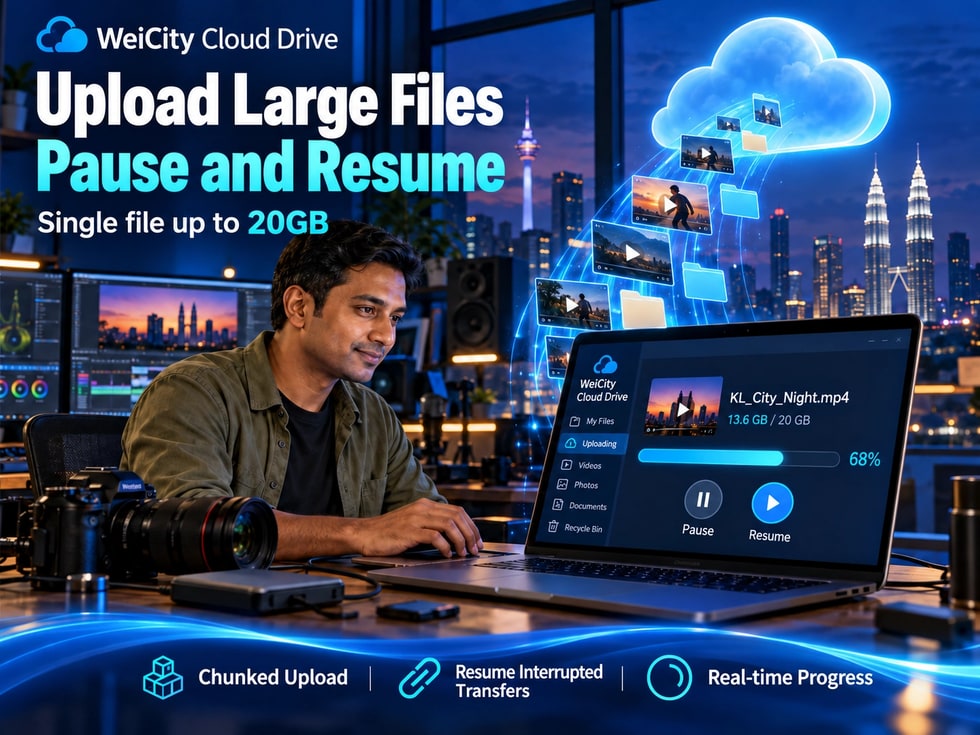
If the network is unstable while uploading a large file, do you have to start over? WeiCity Cloud Drive supports uploading single files of up to 20GB, and provides chunked uploading, pause and resume, and real-time progress display. This article covers preparation before uploading large files, how to handle interruptions, and how merchants can organize and share videos, design drafts and customer deliverables while reducing repeated work.
What should I do if my product video is too large and the internet disconnects halfway through the upload?
High-resolution photos, design files, or training videos take a long time to upload. Can I pause and then resume?
For merchants who often handle large files, how convenient file uploading is directly affects daily work efficiency.
For example:
🎬 Product introduction videos and event recordings.
🖼️ High-resolution product photos and promotional images.
🎨 Original design files and client-approved drafts.
📚 Course videos and training materials.
📦 Large project files and compressed archives.
These materials may reach hundreds of MB, or even several GB.
If network fluctuations occur during upload, or you need to pause temporarily, re-uploading the entire file may waste time.
WeiCity Cloud Drive supports uploading individual files of up to 20GB, and provides chunked upload, pause and resume, and real-time progress display.
📦 Each file can be up to 20GB.
🧩 Chunked upload reduces the complexity of managing large file transfers.
⏸️ Supports pausing and resuming uploads.
📶 After a network interruption, you can try to resume based on the task status.
📊 View upload progress in real time.
☁️ After the upload is complete, you can continue to organize and share your files.
WeiCity Cloud Drive makes it easier for merchants to handle large videos, design files, and project materials.
WeiCity Cloud Drive supports uploading individual files of up to 20GB.
For merchants who often need to save large work files, materials can be centrally stored in Cloud Drive as needed.
For example:
📹 Product introduction videos.
🎥 On-site event recordings.
🎬 Corporate promotional films.
📚 Recorded course videos.
For example:
📸 Original product photography files.
🏪 Store environment photos.
🎨 Promotional design images.
📷 Client project photos.
For example:
🖥️ Design source files.
📝 Client-approved drafts.
🖼️ High-resolution design images.
📦 Packaged project files.
For example:
🎓 Course videos.
📄 Teaching documents.
📚 Training materials.
🎬 Teaching demonstration videos.
Based on project needs, related files can be organized into a compressed archive and then uploaded.
This is an important concept to understand when using Cloud Drive.
20GB refers to the maximum size of a single file upload. It does not mean the account has 20GB of free storage space.
For example:
📦 Suppose you want to upload a 3GB video.
☁️ The single file size does not exceed the 20GB limit.
📊 However, Cloud Drive still needs enough remaining capacity.
If the current account has only 1GB of available space left, the 3GB file cannot be saved directly.
📌 Before uploading, check both the single file size and the account's remaining storage space.
When uploading an ordinary photo, the file may finish transferring very quickly.
However, for a 5GB, 10GB, or even larger video, the upload time usually increases noticeably.
WeiCity Cloud Drive uses a chunked upload mechanism to help the system handle large file transfers.
Chunked upload divides a large file into smaller data segments and transfers them step by step.
For example, a large video file can be processed by the system in segments, without needing to complete the entire data transfer at once.
No.
Simply select the files you want to upload as usual.
For example:
🎬 You do not need to cut videos yourself.
📁 You do not need to manually split compressed archives.
🖼️ You do not need to split large design files into multiple files.
Splitting is handled by the upload system.
📦 It makes large files easier to handle.
📊 It helps the system manage upload progress.
⏸️ It works together with the pause and resume mechanism.
📶 When resume conditions are met, it reduces repeated transfer of data that has already been completed.
Actual uploads are still affected by the network, browser, device, and storage status.
📌 Chunked upload can improve transfer management for large files, but the upload task still needs to be fully completed.
Yes.
WeiCity Cloud Drive provides pause and resume functions.
For large files that take a long time to upload, you can pause them using the related controls in the upload task.
For example:
💻 You are in an important online meeting.
📞 You need to handle a client video call.
📶 You are about to switch network connections.
🛠️ You temporarily need to handle other work.
⏳ You want to continue uploading later.
In the upload task, find the pause control provided on the page.
Pause the transfer by following the prompts on the interface.
When your network or work schedule allows, resume the transfer using the continue option in the upload task.
📁 Try to keep the original files on your local device.
🖥️ Try to keep the original upload page open.
🌐 Avoid clearing browser data at random.
📄 Do not modify the original file while the upload task is incomplete.
When an upload is paused, you cannot assume the file has been fully saved to Cloud Drive.
You still need to resume the task and wait for the upload to finish.
📌 Pausing and resuming make upload scheduling more flexible, but you should still confirm that the file has been successfully saved to Cloud Drive.
When uploading a large video or design file, the network may suddenly be interrupted.
For example:
📶 Wi-Fi connection dropped.
🌐 Network is temporarily unstable.
💻 Browser connection is abnormal.
📱 Device switched networks.
At this point, you do not necessarily need to re-upload the entire file immediately.
You can first check whether the current upload task supports resuming.
First check whether the device has reconnected to the network.
You can try opening a regular web page to confirm that the network is working normally.
Check the upload task status in WeiCity Cloud Drive.
Confirm whether the task still exists.
If the page offers a continue upload or retry option, follow the prompts.
If the system asks you to reselect the file, choose the same file that was being uploaded.
After the upload resumes, keep monitoring the progress.
After the upload is complete, go to the target folder to confirm the file is there.
🖥️ The original upload page has been closed.
🌐 Browser data has been cleared.
📁 The local file has been moved.
📝 The content of the original file has been modified.
💻 The device or browser status has changed.
These situations may affect task recovery.
📌 Resumable uploads help reduce repeated uploading, but whether the original progress can be recovered should still be determined by the current upload task status and the page prompts.
WeiCity Cloud Drive shows upload progress in real time.
For larger files, you can use the upload task to see whether the transfer is still in progress.
Indicates that the file is still being transferred.
We recommend keeping the network connection stable and avoiding device states that may interrupt the transfer.
Indicates that the upload task has temporarily stopped.
Continue the upload using the action provided on the page.
If the page shows an error, you can first check:
📶 Network connection.
📦 File size.
☁️ Remaining storage capacity.
💻 Browser status.
When the page shows that the upload is complete, go to the target folder and check the file.
If the file format supports online preview, you can try opening it to view.
For example:
🖼️ Whether images display properly.
📄 Whether the document can be opened.
🎬 Whether the video can be previewed.
If the file format does not support online preview, check the file name and size, and download the file to verify it if necessary.
Online preview support may vary by file format.
📌 After uploading, it is recommended to check the target folder again, especially for important files to be delivered to clients.
If uploads keep failing, the problem may not be with the file itself.
We recommend checking the following areas.
First, check the size of the individual file.
If it exceeds the current single-file upload limit, you will need to arrange another way to handle the file.
For example:
📁 The file size is 5GB.
☁️ The remaining capacity is only 2GB.
Even if a single file does not exceed the 20GB limit, it cannot be saved directly to a Cloud Drive that does not have enough capacity.
Check:
🌐 Whether the device is properly connected to the internet.
📡 Whether the Wi-Fi connection drops frequently.
💻 Whether the device is experiencing network issues.
Check whether the browser is still running and whether the upload page shows any errors.
For example:
📁 The file has been moved.
🗑️ The original file has been deleted.
📝 The file content has been modified.
These situations may affect an upload that is in progress.
If the folder is protected by an access password, make sure the necessary unlocking steps have been completed.
When uploading large files, avoid letting the device enter a sleep state that may interrupt the network connection or browser task.
Please record the following:
📦 File size.
📄 File format.
💻 Device used.
🌐 Browser name.
⚠️ Error message on the page.
Then contact WeiCity Support for help with troubleshooting.
📌 If an upload fails, first check the file size, remaining capacity, network, and browser status, which can help you find the cause more quickly.
If large files are uploaded without clear categories, they may still be hard to find later.
Before uploading, create folders based on business purposes.
You can sort them by:
🛍️ Product name.
📅 Shooting date.
🎥 Video purpose.
🏷️ Version number.
.
You can sort them by:
👤 Client name.
📁 Project name.
📝 Revision stage.
📦 Final delivery.
.
You can sort them by:
🎓 Course name.
📖 Teaching chapter.
🎬 Course videos.
📄 Related textbooks.
.
You can sort them by:
🎉 Event name.
📅 Event Dates.
📷 Photos.
🎬 Videos.
.
We recommend keeping confirmed final deliverables together in a separate folder.
For example:
📁 Client name
📂 Project name
📂 Final delivery
📄 Final deliverable files
📄 Instructions
📄 Delivery checklist
After completing a brand design project, a design studio can first create:
📁 Client A_Brand Design
📂 Design source files
📂 Preview versions
📂 Final delivery
Then upload the related materials to the corresponding locations.
📌 Organizing large files into categories before uploading can make later searching, revising, and client delivery easier.
After uploading, you can share files or folders through WeiCity Cloud Drive.
Choose different access methods based on your actual needs.
Suitable for client materials that need a clearly designated recipient.
For example:
🎨 Design results.
📄 Project reports.
📦 Formal delivery files.
For files or folders that need extra verification, you can apply password protection using the sharing options available.
If a file only needs to be available for a certain time, you can set a suitable sharing period.
For large videos, design files, or final deliverables that clients need to keep, open download permissions according to your agreement.
You can use the chat sharing option provided by the platform to send Cloud Drive files or folders to clients.
✅ The file has finished uploading.
✅ The file name and version are correct.
✅ The sharing recipient is correct.
✅ Download permissions match the purpose.
✅ The sharing expiry period has been explained.
📌 For large delivery files that clients need to download, first confirm that the upload is complete, then check the sharing permissions and download method.
No.
20GB is the upload limit for a single file.
The actual storage capacity available to an account depends on the current Cloud Drive plan and remaining space.
No.
You can upload normally by selecting the file.
Chunked transfer is handled by the system.
Not necessarily.
This depends on the upload task status, the browser condition, and the messages shown on the page.
We recommend keeping the original file and the upload page, then checking whether the upload can continue once the network is restored.
This depends on the file format and platform support.
A file that uploads successfully does not mean every format supports online preview.
It is not recommended to close the browser before the upload task is complete.
Closing the page may affect the task status and later recovery.
This is not recommended.
Keep the original local file unchanged during the upload as much as possible, so the transfer can continue without interruption.
This may be related to the following factors:
☁️ Insufficient remaining storage space.
📶 Network connection problems.
💻 Browser status.
📁 Changes to the local file.
🔐 Access requirements of the target directory.
You can contact the WeiCity support email:
Please provide the file size, file format, device, browser, and error message together to help technical staff troubleshoot.
✅ Is each individual file no larger than 20GB?
✅ Is there enough remaining space in Cloud Drive?
✅ Are the original local files complete?
✅ Is the network connection stable?
✅ Have you selected the correct target folder?
✅ Is the upload task progressing normally?
✅ Can you view the upload progress?
✅ Is the device running normally?
✅ Are you avoiding closing the upload page unnecessarily?
✅ Has the network connection been restored?
✅ Does the original upload task still exist?
✅ Does the page offer a resume or retry option?
✅ Can the original local file still be read?
✅ Does the file appear in the correct folder?
✅ Are the file name and size correct?
✅ Can files that support preview be opened normally?
✅ Do you need to further check the file's integrity?
✅ Is the sharing recipient correct?
✅ Do you need to set an access password?
✅ Do the download permissions match the delivery purpose?
✅ Has the sharing expiry period been explained?
📌 Checking capacity before uploading, monitoring progress during uploads, and verifying files afterward can help reduce problems when transferring and delivering large materials.
For merchants who regularly work with product videos, high-resolution photos, design files, and course materials, uploading large files is an important part of daily work.
WeiCity Cloud Drive helps merchants save and organize work materials more easily through large file upload and related transfer management features.
📦 Supports uploading single files up to 20GB.
🧩 Chunked upload, for easier handling of large files.
⏸️ Supports pausing and resuming uploads.
📶 After a network interruption, you can try to resume based on the task status.
📊 View upload progress in real time.
📁 Organize files by customer, project, and purpose.
🔗 After the upload is complete, you can set sharing permissions.
💬 Send materials to customers with WeiCity Chat.
WeiCity Cloud Drive lets you manage large files on one platform, from upload and organization to sharing and delivery.
Whether it is a high-definition photo of several hundred MB or a product video or project file of several GB, you can organize your materials first and then arrange the transfer based on the actual capacity and upload conditions.
After the upload is complete, be sure to confirm that the file is complete, and set an appropriate sharing method based on the customer or work purpose.
Specific single-file upload limits, pause-and-resume behavior, and task recovery are subject to WeiCity's current platform features and on-page prompts.
👉 Open WeiCity Cloud Drive: https://wei.city/app/drive